CPU and GPU Compatibility: What Actually Has to Match
 Tayyab Rehman
11 min read
Tayyab Rehman
11 min read
Your cart holds an RTX 5070. Your machine runs a Ryzen 5 3600 from 2019. The card costs more than the rest of the system combined, and you are one click from finding out whether that was clever or stupid.
So you search for compatibility and find forum threads arguing about PCIe generations, chipset support, and whether your board will even post.
Here is the answer almost nobody leads with. Compatibility is barely a real problem. Any modern graphics card physically works with any modern processor. They plug into a slot, the board negotiates, and the machine boots.
The real question hiding under the word compatibility is whether the pairing makes sense. Will the processor feed the card, will your power supply carry it, and will the card physically fit in the case?
This guide separates the four things that genuinely must match from the things people worry about for no reason.
You will finish able to confirm any pairing in about five minutes, using a checklist rather than a forum argument.
I cover the four hard requirements, why PCIe generation almost never matters, the power supply maths that actually does, and how to tell a compatible pairing from a sensible one. Those are different questions and conflating them costs people money.
One opinion that cuts against most advice online. Worrying about CPU and GPU compatibility is usually wasted energy. In fifteen years of these pairings the genuine blockers have been power supplies and case clearance, not silicon refusing to talk to silicon.
What this skips: server hardware, mining rigs, and external enclosures. Prices reflect September 2026 and move constantly, so read them as ranges.
Are CPUs and GPUs actually compatible with each other?
Yes, essentially always. Any desktop graphics card from the last decade works with any desktop processor from the last decade, because they connect through a standard PCIe slot rather than pairing directly. There is no approved list and no brand matching requirement. An Intel processor runs an AMD card without complaint.
The processor and the card never speak to each other directly. Both connect to the motherboard, which handles the conversation.
That is why the mixing worries are unfounded. Most people searching for GPU and CPU compatibility are really asking whether a pairing is wise, not whether it will boot. AMD cards in Intel systems and Nvidia cards in AMD systems are completely ordinary builds.
What actually has to match, then?
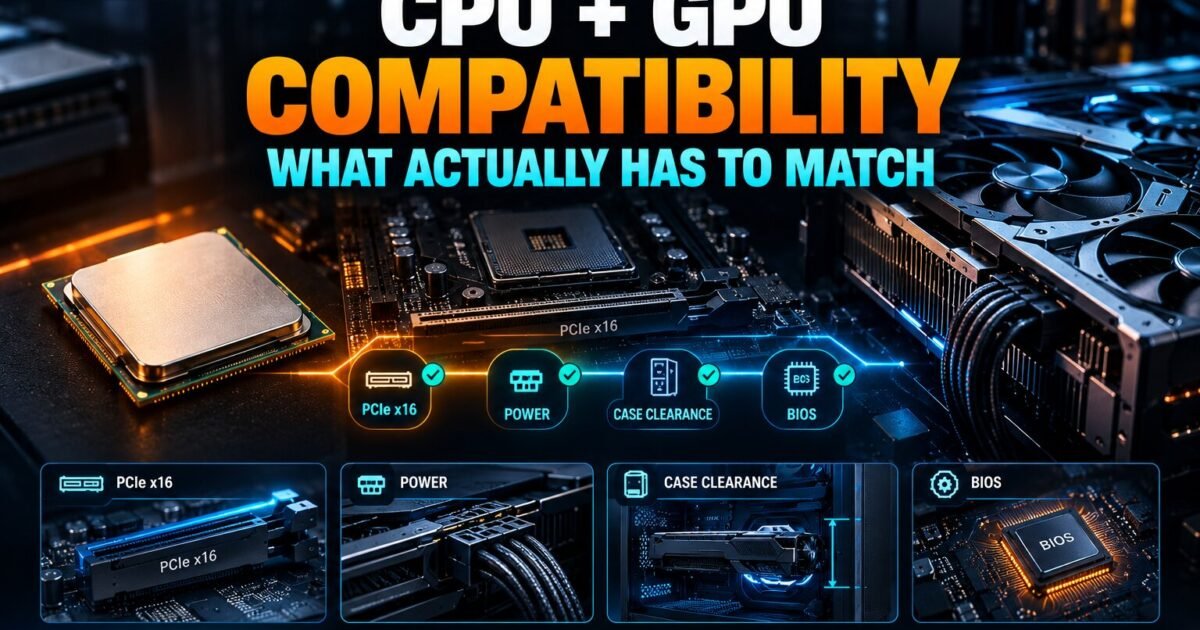
Four things. Your motherboard needs a free PCIe x16 slot, your power supply needs enough wattage and the right connectors, your case needs physical clearance for the card, and very old boards may need a BIOS update. Everything else people worry about is noise.
| Requirement | Does it matter? | How to check |
|---|---|---|
| PCIe x16 slot free | Yes, essential | Look at the board, top slot |
| Power supply wattage | Yes, most common blocker | Add system draw plus headroom |
| Power connectors | Yes, check 8 pin or 12VHPWR | Count cables from the supply |
| Case clearance in mm | Yes, second most common blocker | Measure length and thickness |
| BIOS version | Rarely, very old boards only | Board support page |
| PCIe generation | Almost never | Backward compatible by design |
| CPU brand matching card brand | No, not a thing | Ignore entirely |
| Chipset model | No, for graphics cards | Ignore entirely |
Read that table again and notice where the risk sits. The bottom three rows generate most of the forum anxiety and cause almost none of the failures.
Does PCIe generation matter for GPU CPU compatibility?
Rarely. PCIe is backward and forward compatible, so a PCIe 5.0 card runs in a PCIe 3.0 slot at PCIe 3.0 speeds. On full x16 slots the real world loss is usually 1 to 3 percent. It only becomes serious on cards limited to x8 or x4 lanes.
The exception is worth knowing. Some budget cards ship with only eight or even four lanes wired. Put one of those in an older PCIe 3.0 board and the loss can reach 10 to 25 percent.
Check the lane count on the card specification before buying if your board is PCIe 3.0. Full x16 cards are fine. Cut down x8 cards are the trap.
Will an old CPU work with a new graphics card?
It will work, but it may waste your money. A six year old processor runs a current card without any technical problem. The issue is that it may not prepare frames fast enough to keep that card busy, particularly at 1080p, so you pay flagship prices for mid range results.
This is the distinction that matters. Nearly every desktop pair is CPU GPU compatible on paper, yet compatible and sensible are not the same word.
Resolution decides how much it costs you. At 4K an older chip often keeps up fine, because the card carries the load. At 1080p the same pairing wastes a large share of what you spent.
Run the exact pair through our bottleneck calculator at your resolution before ordering. If it names the processor as the limit, read our guide on fixing a processor bottleneck first, because several fixes cost nothing.
How do you check CPU and GPU compatibility before buying?
Work through four checks in order. Checking CPU GPU compatibility takes four steps. Confirm a free PCIe x16 slot, measure your case clearance in millimetres, total your power draw and compare it against your supply, then check the board support page if your motherboard predates 2017. Five minutes covers all four.
- Open your case and find the long slot nearest the processor.
- Measure from the back bracket to whatever blocks the way, usually a drive cage or fan.
- Read the wattage label on your power supply and count spare connectors.
- Compare the card specification for length, slot thickness, and required connectors.
- Check whether the pairing is balanced, not just physically possible.
Step five is the one people skip, and it is the only step that decides whether the money was well spent.
Does your power supply limit which card you can use?
Yes, and this is the most common genuine blocker. Modern cards draw between 200 and 450 watts under load. Add your processor, drives, and fans, then leave 20 to 30 percent headroom. An underpowered supply causes crashes and shutdowns that look exactly like a faulty card.
Connectors matter as much as wattage. Newer high end cards use a 12VHPWR connector that older supplies simply do not have.
Adapters exist and they work, but they add a failure point at the exact place where the most current flows. I would rather buy a supply with the native cable.
Total your draw properly with our power supply calculator rather than guessing from the card box figure.
What about physical fit and case clearance?
Measure before you order. Current high end cards run 300 to 360 millimetres long and occupy three or even four expansion slots. Small cases and older prebuilt machines frequently cannot take them, and no amount of compatibility between processor and card changes that.
The three measurements people forget
- Length. Front to back, blocked by drive cages and front fans.
- Thickness. Measured in slots, and three slot cards block everything below.
- Height. Top edge to side panel, which catches people with glass panels.
Prebuilt machines from large manufacturers are the worst offenders. They often use proprietary cases and supplies sized exactly for the card they shipped with.
Do you need a BIOS update for a new graphics card?
Almost never on boards from 2017 onwards. Very old boards sometimes need a BIOS update to support Resizable BAR or UEFI only cards. Unlike a processor swap, a graphics card upgrade rarely requires any firmware work at all.
Resizable BAR is the one feature worth enabling. It lets the processor access the whole frame buffer at once and returns a few percent in many titles, occasionally more.
It usually sits in the BIOS under Above 4G Decoding. Turn both on together, since one depends on the other.
Is a pairing compatible or actually balanced?
Compatible means it boots. Balanced means neither part wastes the other. A balanced pairing keeps graphics card usage above 90 percent during real gameplay at the resolution you play, which means the card you paid for is doing the work.
Rough guidance that holds up well. Budget processors suit budget and lower mid range cards. Mid range chips comfortably handle upper mid range cards at 1440p. Flagship cards at 1080p need a current flagship chip or you waste them.
Check what a pairing should deliver at your resolution with our FPS calculator, then read the result against our explainer on what a good bottleneck percentage means.
Which pairings should you avoid?
Avoid pairing a flagship card with a budget processor at 1080p, since you lose a large share of what you paid for. Avoid cut down x8 cards in older PCIe 3.0 boards. And avoid any card your power supply cannot feed with native connectors.
The first case is the expensive one. Someone spends 900 dollars on a card, keeps a four core processor, and gains almost nothing in the games they play.
On older AMD boards there is usually a better move available. A chip swap on the same board often costs a third of a new card and returns more, which our AM4 processor guide works through with real pricing.
Does any of this apply to laptops?
Not really, because laptop graphics are soldered and cannot be changed. The processor and card were paired at the factory and the only variable you control is the power limit the manufacturer set. Two laptops with identical part names can perform very differently.
Check the wattage figure in the specification rather than the model name. A card at 140 watts beats the same card at 80 watts by a wide margin.
That single number tells you more about real performance than the model number ever will.
What do people get wrong about this?
They worry about brand matching, which does not exist. They obsess over PCIe generation, which rarely costs more than a few percent. Then they skip the power supply and case measurements, which are the two checks that genuinely stop a build from working.
The second mistake is treating compatibility as the whole question. A pairing can be perfectly compatible and still be a poor use of money.
The third is trusting the wattage printed on the card box. That figure covers the card alone, not your processor, drives, and fans.
Price the whole machine in our PC builder, which checks each part against the rest rather than in isolation.
Does memory matter when you pair a processor and a card?
More than people expect, and no compatibility list mentions it. Running a single memory stick instead of two matched sticks halves your bandwidth and starves the processor. That produces stutter which looks exactly like a mismatched pairing, and it is the cheapest fault on this page to correct.
Prebuilt machines cause most of these cases. A single 16GB stick costs the manufacturer less and leaves them an upgrade to sell you later.
Open Task Manager, click Memory, and read the slots used figure. If it says one of four, you are not running dual channel, so buy a second matching stick before you touch anything else.
Check your memory speed on the same screen. Kits sold as 3600 frequently run at 2133 until you enable XMP or EXPO in the BIOS.
How long will a sensible pairing stay sensible?
Expect three to four years before the balance drifts. Games grow more demanding on processors faster than on graphics cards, because world simulation and object counts keep rising. A pairing that looks balanced today usually becomes processor limited before it becomes graphics limited.
That asymmetry should shape how you buy. Given a fixed budget and a long horizon, lean slightly harder on the processor than the pairing strictly needs today.
Upscaling accelerates the same drift. Enabling DLSS or FSR lowers the internal resolution your card renders, which quietly hands the pressure back to the processor.
Plan for the monitor you will own in two years rather than the one on your desk today. That single habit prevents most regret.
Frequently asked questions
Do CPU and GPU need to be compatible?
Not with each other directly. Both connect to the motherboard rather than to one another, so GPU and CPU compatibility is effectively automatic on modern desktop hardware. What must match is your PCIe slot, power supply, and case clearance.
Can I use an AMD GPU with an Intel CPU?
Yes, with no drawback at all. Brand matching between processor and graphics card is not a real requirement. AMD cards in Intel systems and Nvidia cards in AMD systems are completely standard builds and perform exactly as expected.
How do I check if my CPU and GPU are compatible?
Confirm a free PCIe x16 slot, measure your case clearance in millimetres, total your power draw against your supply rating, and check your board support page if the motherboard predates 2017. Then check whether the pairing is balanced, not merely possible.
Will a PCIe 5.0 card work in a PCIe 3.0 slot?
Yes. PCIe is backward compatible, so the card runs at the slower standard. On full x16 cards expect to lose only 1 to 3 percent. Cards wired for just x8 or x4 lanes can lose 10 to 25 percent in older boards.
Is my CPU too old for a new graphics card?
It will work regardless of age, but it may waste your money at low resolution. At 4K an older chip usually keeps up. At 1080p it often holds a new card back badly. Check the pairing at your own resolution before ordering.
Does my power supply need upgrading for a new GPU?
Often, and this is the most common real blocker. Modern cards draw 200 to 450 watts. Add your other components and leave 20 to 30 percent headroom. Check connector types too, since newer cards need 12VHPWR that older supplies lack.
Do I need a BIOS update to install a new graphics card?
Almost never on boards from 2017 onwards. Unlike a processor swap, a card upgrade rarely needs firmware work. Very old boards may need an update for Resizable BAR or UEFI only cards, so check the support page if yours is older.
Back to that RTX 5070 sitting in your cart next to a Ryzen 5 3600. It will work. It will boot, install drivers, and run every game you own.
Whether it is a good idea depends entirely on your monitor. At 1440p or 4K, go ahead. At 1080p you would get more from spending half as much on a card and putting the rest toward the processor.
My prediction is that power connectors become the real compatibility story over the next few years, not silicon. Card power draw keeps climbing while plenty of supplies in service were built for a 250 watt world.
Your next step takes five minutes. Measure your case, read your supply label, and count your spare connectors before you order anything.
What pairing are you considering, and which of the four checks are you least sure about?
Related reading
What Is a Good Bottleneck Percentage? The Honest Answer
You type your parts into a bottleneck calculator. It returns 18 percent and colours it orange. Your stomach drops. So you open three more calculators. One says 4…
Read more about What Is a Good Bottleneck Percentage? The Honest Answer