Bottleneck Calculator
Our database is updated continuously
We maintain the processor and graphics card database ourselves and refresh it as new hardware ships, most recently in October 2026. It covers current AMD Ryzen and Ryzen AI processors, Intel Core and Core Ultra processors, and GeForce RTX 50-series and Radeon RX 9000-series graphics cards, alongside a deep back catalogue of older desktop and laptop hardware.
Resolution, memory, storage, workload and quality preset all feed the result. Use it to compare configurations before you buy or before you upgrade. Actual performance still varies with cooling, drivers, power limits and the specific game.
What is a bottleneck calculator?
A bottleneck calculator is a free tool that takes a processor and a graphics card, compares how fast each one is relative to the other, and tells you which of the two is holding the other back and by roughly how much. This bottleneck calculator adds resolution, memory, workload and quality preset to that comparison, because the same pair of parts can be limited by different components at 1080p and at 4K.
It is a planning instrument rather than a measurement. It works from published benchmark data for the parts you select, not from readings taken on your own machine, which is exactly what makes it useful before you have bought anything. You can check a pairing you are considering, compare two upgrade paths against each other, or find out whether the part you were about to replace was ever the constraint.
People use it for gaming, video editing, 3D rendering, streaming and everyday multitasking. In demanding titles such as Cyberpunk 2077, Red Dead Redemption 2, Microsoft Flight Simulator or Escape from Tarkov, an unbalanced pairing shows up as a frame rate well below what the hardware on paper suggests, uneven frame pacing, or one component sitting idle while the other runs flat out. If you want the deeper reading on where the line sits, our guide to what counts as a good bottleneck percentage goes through it properly.
What this calculator tells you
Every PC has one component that runs out of headroom before the rest. In a gaming PC it is almost always the processor or the graphics card, and whichever one it is quietly sets your frame rate while the other waits around. This calculator compares the two, tells you which is the limiting part, and puts a number on how wide the gap is.
The reason that matters is money. The most common upgrade mistake is replacing the part that was never the constraint — buying a faster graphics card when the processor was the thing capping performance, then discovering the new card behaves almost exactly like the old one. Checking first turns an expensive guess into a decision you can justify.
It is also worth saying plainly what this is not. It is an estimate built from published benchmark data, not a measurement taken on your machine. It cannot know how a particular game distributes its work, how fast your memory runs, or what your cooling allows. Read the percentage as a guide to the size and direction of a mismatch, not as a promise about a specific title.
Core features of this bottleneck calculator
What you get beyond a single percentage.
Measured benchmark data, not a tier list
The dropdowns come from our own component database, covering thousands of desktop and laptop processors and graphics cards, so you are comparing measured scores rather than someone's opinion of a ranking.
Resolution and workload aware
Resolution, use case, game genre and quality preset all change the calculation, not just the label on the result. A pairing can be CPU-limited at 1080p and GPU-limited at 4K, and the tool reports that honestly.
A published, checkable formula
The normalisation divisors, the resolution factors, the percentage formula and the four rating band thresholds are all written out on this page rather than hidden behind a black-box score.
Utilisation and frame-rate estimates
Alongside the percentage you get estimated CPU, GPU and RAM load, a balance score out of 100, and a frame-rate estimate across every resolution so you can see the shape of the imbalance.
Specific upgrade guidance
Recommendations name the limiting part directly, with separate notes for 4K gaming and high refresh-rate play at 1080p or 1440p, because those two targets are decided by opposite components.
Free, with its limits disclosed
No account, no paywalled result, no email gate. The tool also states where its own method is weaker instead of presenting every resolution as equally reliable.
How the calculation works
Every result starts by comparing two numbers that were never designed to sit on the same scale. A processor’s CPU benchmark score and a graphics card’s 3D benchmark score come from different suites measuring different workloads, so the first step has nothing to do with bottlenecks at all. It is arithmetic to make the two comparable.
Step one: adjust both parts for the workload
Before anything is compared, each part’s benchmark score is scaled by how hard your selected workload leans on it. A competitive shooter at low settings asks far more of the processor and far less of the card than a path-traced single-player game at maximum quality, so the same two parts are effectively different hardware depending on what you run. The use case, game genre and quality preset all feed this step, which is why changing them moves the result.
Step two: put both parts on one scale
The adjusted CPU figure is divided by 40,000 and the adjusted graphics figure by 38,000. Those divisors are fixed reference points rather than moving averages, which is why a given part’s normalised score does not drift over time as newer hardware is added above it.
Step three: weight for resolution
Rendering more pixels is overwhelmingly graphics work, while a game’s logic, physics and draw calls stay roughly constant however many pixels end up on screen. At a low resolution the processor has to prepare far more frames per second, which is exactly where a weak CPU shows itself; at a high resolution the card is doing so much more work per frame that the processor stops being the constraint. The calculator models that by multiplying the normalised CPU score by 0.7 at 1080p, 1.0 at 1440p and 1.2 at 4K.
Step four: compare, then rate
Whichever adjusted score is lower is named as the limiting part, because it runs out of headroom first and forces the other component to wait. The percentage is the proportional gap between the two scores, measured against the higher one. The saturated component is reported at 95% utilisation, standing in for running as hard as it can, and the other is shown as a proportion of that. A balance score out of 100 is derived from the same figure, so 3% bottleneck reads as 94 out of 100.
The calculation, step by step
Four inputs, one answer, and an explanation of how it was reached.
Adjust for workload
Each part's benchmark score is scaled by how hard your use case, game genre and quality preset lean on it.
Normalise
Adjusted CPU score divided by 40,000 and adjusted 3D score divided by 38,000, putting both parts on the same scale.
Weight for resolution
The normalised CPU score is multiplied by 0.7 at 1080p, left at 1.0 at 1440p, or multiplied by 1.2 at 4K, because pixels are graphics work and game logic is not.
Compare, rate and recommend
The lower score is the limiting part; the gap becomes a percentage, a balance score and upgrade guidance naming the specific part worth replacing, if any.
The four rating bands
The bands exist to answer whether a result is worth acting on, not just whether there is a gap at all.
| Result | Band | What to do about it |
|---|---|---|
| 0–10% | Excellent balance | Nothing. The honest advice at this level is to spend the money elsewhere, on memory, storage, cooling or a better monitor. |
| 11–20% | Good balance | A real but minor gap, inside the margin you would lose to background processes and driver overhead whatever parts you own. |
| 21–30% | Moderate bottleneck | The point where a well-chosen upgrade starts to pay for itself. Worth planning, not worth panicking over. |
| Above 30% | Significant bottleneck | One component is meaningfully wasted by the other. Check the named limiting part before buying anything. |
One caveat on the top band: because the thresholds are fixed, a pairing that behaves perfectly well in practice can still land above 30% at 4K, where the resolution weighting pushes the processor’s adjusted score up. Read the named limiting component alongside the number rather than treating the band label as a verdict on the build.
How to read your result
Select a processor, a graphics card, your memory and the resolution you actually play at, then press calculate. The output has five parts, and the percentage on its own is the least informative of them.
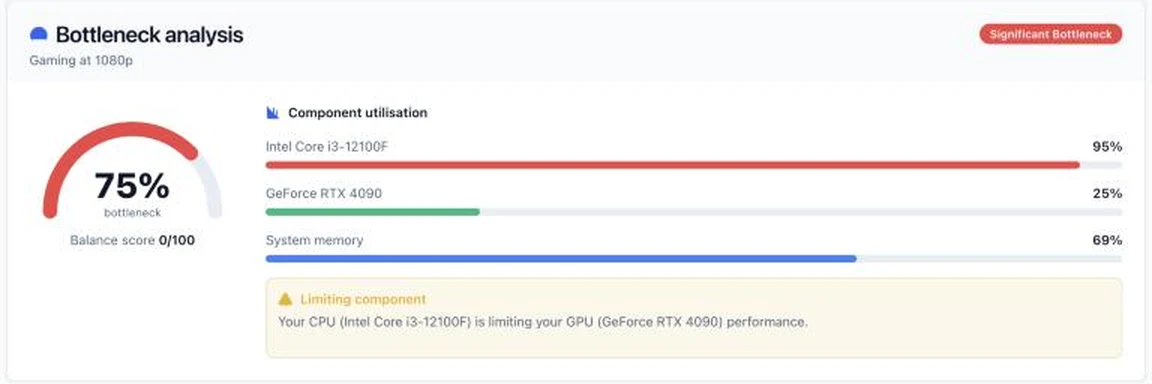
1. The bottleneck percentage
This is the proportional gap between the two adjusted scores. It is not a prediction of how many frames per second you are losing, and it does not mean a game will run that much slower. A 40% figure means one component has roughly 40% more headroom than the other can use under these conditions — not that you are missing 40% of your frame rate.
2. The limiting component
The result names one of the two parts outright: either the processor is limiting the graphics card, or the graphics card is limiting the processor. This is the line most worth reading, because it decides what an upgrade should be. A GPU-limited result in a gaming PC is normal and generally what you want; a CPU-limited result is the one that causes stutter and poor frame pacing, and the one you can do least about through settings.
3. The utilisation bars
Estimated CPU, GPU and RAM load sit next to the percentage. The saturated part is shown at 95%, standing in for running as hard as it can, and the other is shown as a proportion of that. The shape of those two numbers tells you more than the percentage does: 95% against 25% is a card sitting almost entirely idle, while 97% against 95% is a build doing close to everything it can.
4. The balance score
A single figure out of 100, derived from the percentage, for when you just want to know whether a pairing is sensible. Above 80 is a well-matched build. Below 40 means one part is carrying the other.
5. The frame-rate estimate and guidance
The tool also estimates frame rate across every resolution against your target, and names the specific part worth replacing, if any. Where the honest answer is that no upgrade is worth the money, it says that instead of inventing one. If the guidance points at the processor, several fixes do not involve buying a new one.
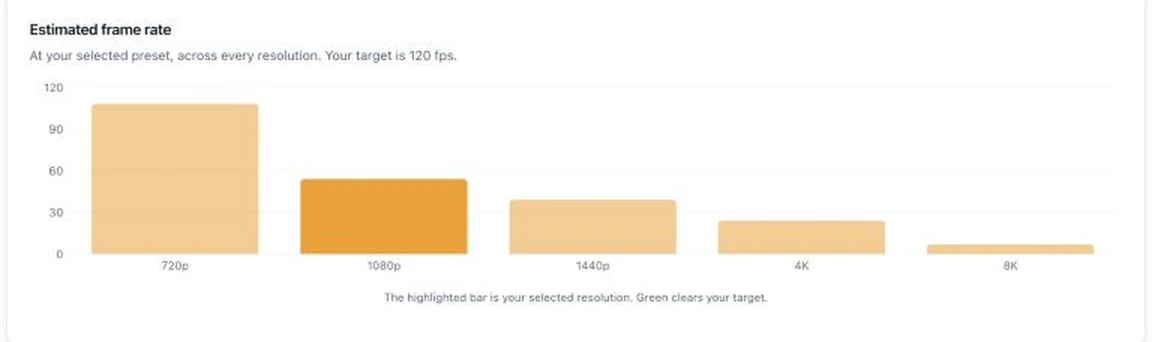
Before you trust any of it, check the system summary. A single wrong dropdown — the laptop version of a chip instead of the desktop one, or 8GB selected when you have 32GB — changes the whole result.
Reading your own utilisation numbers
Once you have a monitoring overlay running, the pair of numbers that matters is CPU load against GPU load. There are only six patterns worth recognising, and each one points at a different conclusion. This is the quickest diagnostic in the whole article, because it needs no benchmarks and no calculator — just two figures read off the screen during normal play.
| CPU load | GPU load | What it means | What to do |
|---|---|---|---|
| Low | Low | Nothing is being asked of the machine. Usually a frame cap, V-Sync, a menu screen, or an undemanding game. | Nothing is wrong. You have headroom to raise settings, resolution, or the frame cap. |
| Low to moderate | 95–100% | The healthy state. The card is the limit and the processor is comfortably ahead of it. | Nothing, unless you want more frames. Lower settings, enable upscaling, or buy a faster card. |
| High | 95–100% | Both parts working hard. Balanced, but with no margin left on either side. | Watch temperatures. Upgrading the card alone here may just expose a processor limit. |
| 95–100% | Below 70% | A clear processor bottleneck. The card is waiting for work. | Check per-core usage, enable XMP or EXPO, close background software, then consider a faster CPU. |
| 95–100% | 80–94% | A mild processor ceiling. The card is close to saturated but cannot quite get there. | Often fixable for free: close a browser, disable an overlay, update drivers. |
| 95–100% | 95–100% | Full saturation. Common in demanding modern titles and in rendering work. | Check cooling. This is where thermal throttling appears first. |
Two cautions. First, total CPU usage hides single-thread limits: a game pinning two cores of a sixteen-core processor shows about 15% overall while being thoroughly CPU-limited, so always switch the graph to logical processors. Second, high GPU usage is not a problem to be solved. A card at 99% is a card you are getting your money’s worth from.
Three worked examples, with the real numbers
These are not illustrations. Each screenshot below is the actual output of the calculator at the top of this page, taken at the stated resolution with the gaming preset. You can reproduce every one of them in about thirty seconds.
Example 1: a budget processor with a flagship card
An Intel Core i3-12100F is a four-core, eight-thread Alder Lake part scoring 13,953 in our processor index. A GeForce RTX 4090 scores 38,042 on the graphics side. Pairing them is the textbook mistake, and the calculator says so without hedging.
| Resolution | Bottleneck | Limiting part | CPU load | GPU load | Balance |
|---|---|---|---|---|---|
| 1080p | 75% | CPU | 95% | 25% | 0/100 |
| 1440p | 64% | CPU | 95% | 36% | 0/100 |
| 4K | 57% | CPU | 95% | 43% | 0/100 |
Read the GPU load column. At 1080p that card is doing about a quarter of the work it is capable of, because the processor cannot prepare frames fast enough to keep it busy. Note also that the figure falls as resolution rises: at 4K the card finally has enough to do that the gap narrows. That is the right direction, and it is why buying a 4090 to pair with an i3 makes least sense at exactly the resolution most people buy it for.
Example 2: a flagship processor with an entry-level card
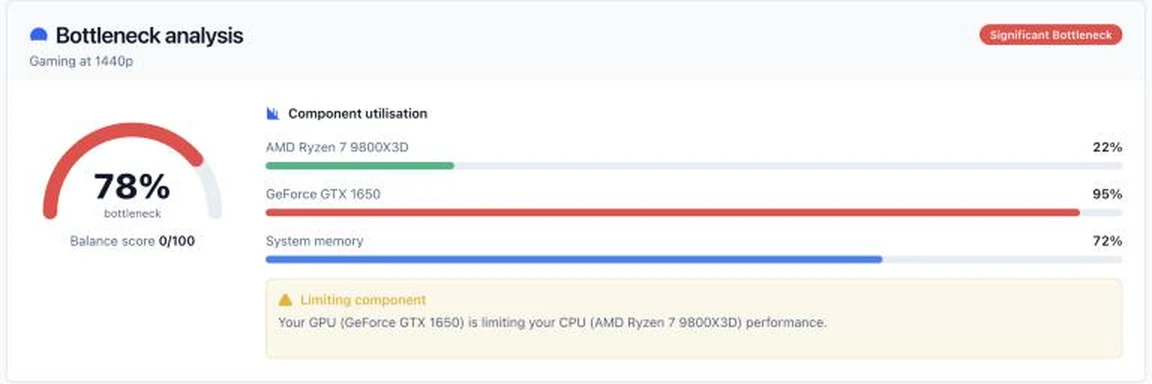
The reverse case. An AMD Ryzen 7 9800X3D scores 39,919; a GeForce GTX 1650 scores 7,867.
| Resolution | Bottleneck | Limiting part | CPU load | GPU load | Balance |
|---|---|---|---|---|---|
| 1080p | 69% | GPU | 31% | 95% | 0/100 |
| 1440p | 78% | GPU | 22% | 95% | 0/100 |
| 4K | 82% | GPU | 18% | 95% | 0/100 |
Here the figure gets worse as resolution climbs, which is the opposite of example one and exactly what should happen. Every extra pixel lands on the card, so a weak GPU falls further behind the higher you push it. The 3D V-Cache on that processor is doing nothing for you at all in this build.
Example 3: a genuinely balanced build
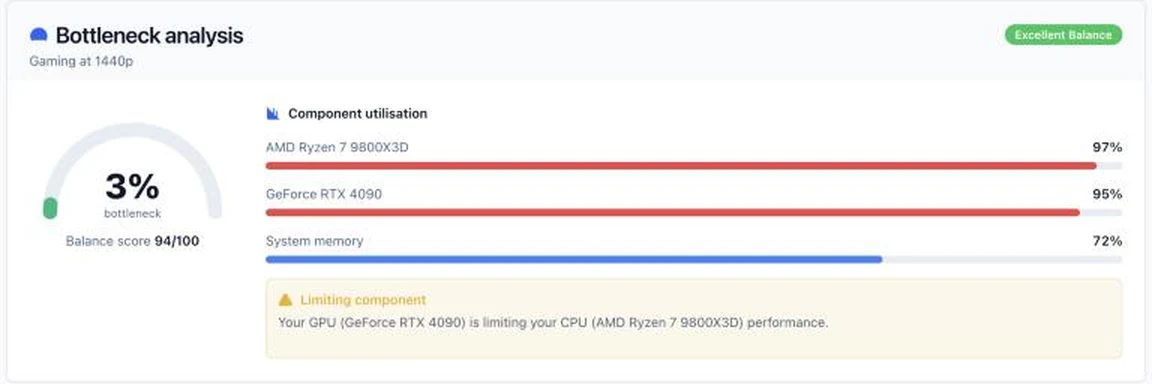
The same Ryzen 7 9800X3D with the RTX 4090 — 39,919 against 38,042, which is about as close as two current flagships get.
| Resolution | Bottleneck | Limiting part | CPU load | GPU load | Balance |
|---|---|---|---|---|---|
| 1080p | 28% | CPU | 95% | 72% | 44/100 |
| 1440p | 3% | GPU | 97% | 95% | 94/100 |
| 4K | 19% | GPU | 81% | 95% | 62/100 |
At 1440p the two parts are matched almost perfectly. At 4K the card becomes the limit, which is the state you want in a gaming PC, because resolution and quality settings then give you something to trade. The 1080p figure is the weakest of the three: 28% overstates the problem, since a 9800X3D at 1080p is one of the fastest gaming processors made. It is a fair illustration of why the limiting component matters more than the number.
Worth noting what changed between examples two and three: the processor stayed the same and only the card moved, and the result went from 78% to 3% at 1440p. That is the whole argument for checking a pairing before buying either half of it.
What is a PC bottleneck?
A PC bottleneck is the point where one component reaches its working limit before the others do, so the rest of the system ends up waiting on it. It is not a fault and not a sign of bad parts. Every computer has a limiting component under every workload; the only question worth asking is whether the gap is wide enough to be worth money.
Consider a PC with a strong graphics card and an older processor. In a competitive shooter at 1080p the card may be capable of 240 frames per second while the processor can only prepare 140. The card waits, and the system sits near 140. That is a CPU bottleneck. Move the same machine to 4K with ray tracing on, and the card is suddenly doing four times the pixel work while the processor’s job barely changes — now the card runs out first and it is a GPU bottleneck. One pairing, two different limiting components, decided entirely by the settings.
That is why no pairing has a single fixed bottleneck percentage, and why any tool quoting one number without asking your resolution is skipping the variable that decides the answer.
Upscaling and frame generation complicate it further. DLSS, FSR and XeSS render at a lower internal resolution and scale up, which reduces the graphics workload and can lift a GPU-limited result. Frame generation raises the number on screen without changing how fast the processor can prepare the underlying frames, so a higher displayed figure does not mean a CPU limit has gone away.
Signs your PC is being held back
- One component sits near full load while the other stays well below it.
- Frame rate barely moves after an upgrade that should have been a large step.
- The average frame rate looks fine but the game still feels uneven to play.
- Frame rate collapses in crowded cities, large battles or simulation-heavy scenes.
- Dropping the resolution produces little or no improvement.
- Raising a single graphics setting costs far more frames than it should.
- Textures load in late, stay blurry, or reload as you turn around.
- Performance falls apart as soon as a browser or recording software is open.
- Clock speeds drop after a few minutes of play and recover when you stop.
- The gap between your average frame rate and your 1% lows is unusually wide.
What causes a bottleneck
- A large performance gap between the processor and the graphics card.
- A high refresh-rate target, which multiplies the work the processor has to do.
- High resolutions and ray tracing, which multiply the work the card has to do.
- Not enough VRAM to hold the textures a game wants resident.
- Too little system memory, pushing the machine into paging to storage.
- Single-channel or slow memory, halving the available bandwidth.
- Weak cooling, which makes a component reduce its own clocks to stay safe.
- Laptop power limits, which can make identically named parts perform very differently.
- Background software taking CPU time the game needed.
- A slow or nearly full drive delaying asset streaming.
- Poor game optimisation, which no hardware choice fully fixes.
- Wrong settings: XMP or EXPO left off, a stale driver, or a power plan capping clocks.
CPU bottleneck or GPU bottleneck: how they differ
The two cases feel different to play, and more importantly they respond to opposite fixes. Getting the direction right is most of the value in checking at all.
| CPU bottleneck | GPU bottleneck | |
|---|---|---|
| What is happening | The processor cannot prepare frames as fast as the card can draw them, so the card idles. | The card cannot draw frames as fast as the processor can prepare them, so the processor idles. |
| How it feels | A frame rate that refuses to climb however far you drop settings, with uneven pacing in busy scenes. | A frame rate that responds immediately when you lower resolution or the preset. |
| Where it shows up | 1080p, high refresh-rate play, strategy and simulation games, crowded multiplayer. | 1440p and 4K, ray tracing on, maximum quality presets. |
| What the monitor shows | One or two cores pinned, total GPU usage below 90%. | GPU pinned at 95–100%, CPU with obvious headroom. |
| Lowering settings | Makes it worse. You have just given the card even less to do. | Works. This is the lever you actually have. |
| Is it bad? | Yes, when severe. It is the one that causes stutter and poor 1% lows. | No. This is the normal and desirable state for a gaming PC. |
| The fix | A faster processor, faster memory, or fewer CPU-heavy settings. Some of it is free. | A faster card, upscaling, or a lower resolution or preset. Full detail here. |
The seven types of bottleneck
A processor-versus-graphics-card mismatch is the bottleneck most people mean, and it is the one the calculator above scores. It is not the only way a PC ends up slower than its parts suggest. Six other limits sit outside that comparison entirely, and none of them will move the percentage — so it is worth knowing how each one announces itself.
1. CPU bottleneck
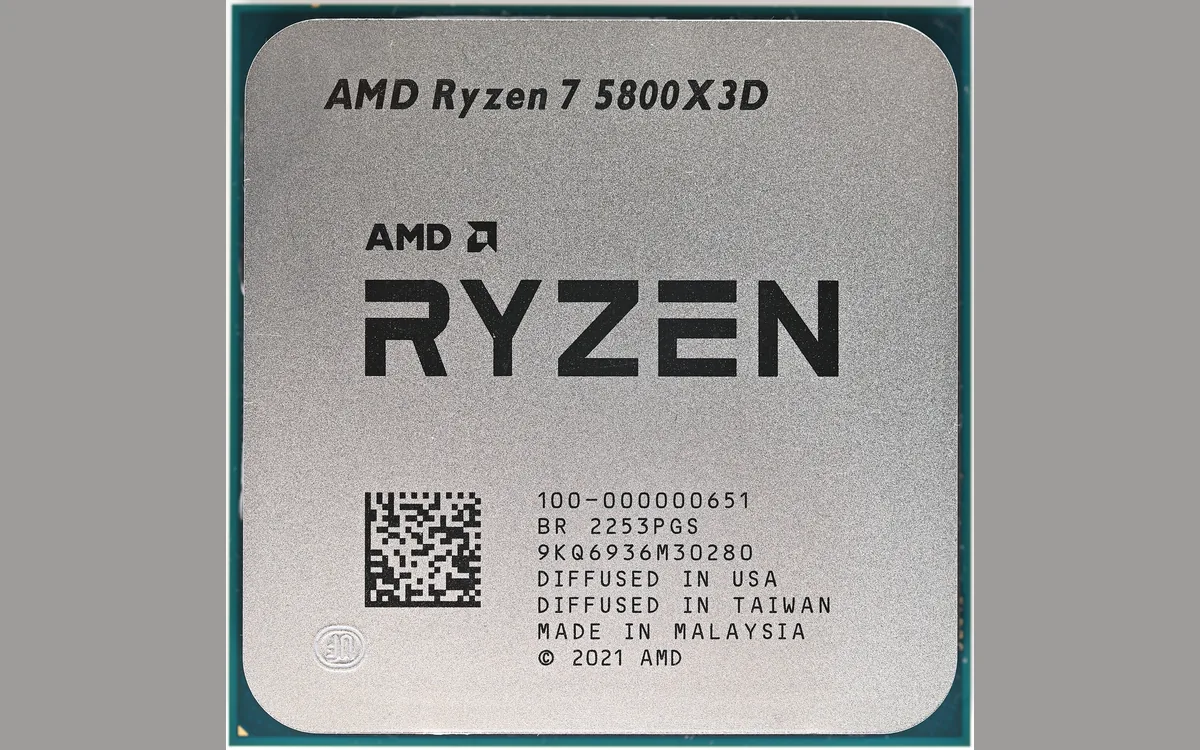
The processor cannot prepare game instructions as fast as the card can render them. It handles game logic, physics, character behaviour, draw calls and everything running in the background, and when those take too long the card receives fewer frames to work on. A CPU bottleneck does not require total CPU usage to hit 100%: many games lean hard on one or two threads, so individual cores can be pinned while the overall figure looks relaxed.
Signs: GPU usage sits below 90% while one or more cores stay pinned; lowering the resolution changes almost nothing; frame rate drops in crowded areas and large battles; average frame rate looks acceptable but 1% lows are poor; a faster card produced almost no gain.
| Cause | Why it limits you | What to do |
|---|---|---|
| Too few cores or threads | Modern engines spread work across threads; four threads runs out of road quickly. | Six cores and twelve threads is a sensible floor. See our gaming CPU picks. |
| Weak single-thread performance | The thread that drives the render loop sets your ceiling regardless of core count. | Judge by single-core benchmark scores, not core count alone. |
| Small cache | Cache misses mean waiting on memory, which hurts most in simulation and strategy titles. | A large L3 helps disproportionately. This is the 3D V-Cache argument. |
| Thermal throttling | The chip lowers its own clocks to stay inside its temperature limit. | Better cooling and airflow, and reseat the cooler if temperatures spike immediately. |
| Background processes | Browsers, launchers, overlays and antivirus scans take the time the game needed. | Close what you are not using and trim startup programs. |
| Slow or single-channel memory | The processor stalls waiting on data, which looks exactly like a slow processor. | Two matched sticks, XMP or EXPO enabled. See DDR4 vs DDR5. |
2. GPU bottleneck
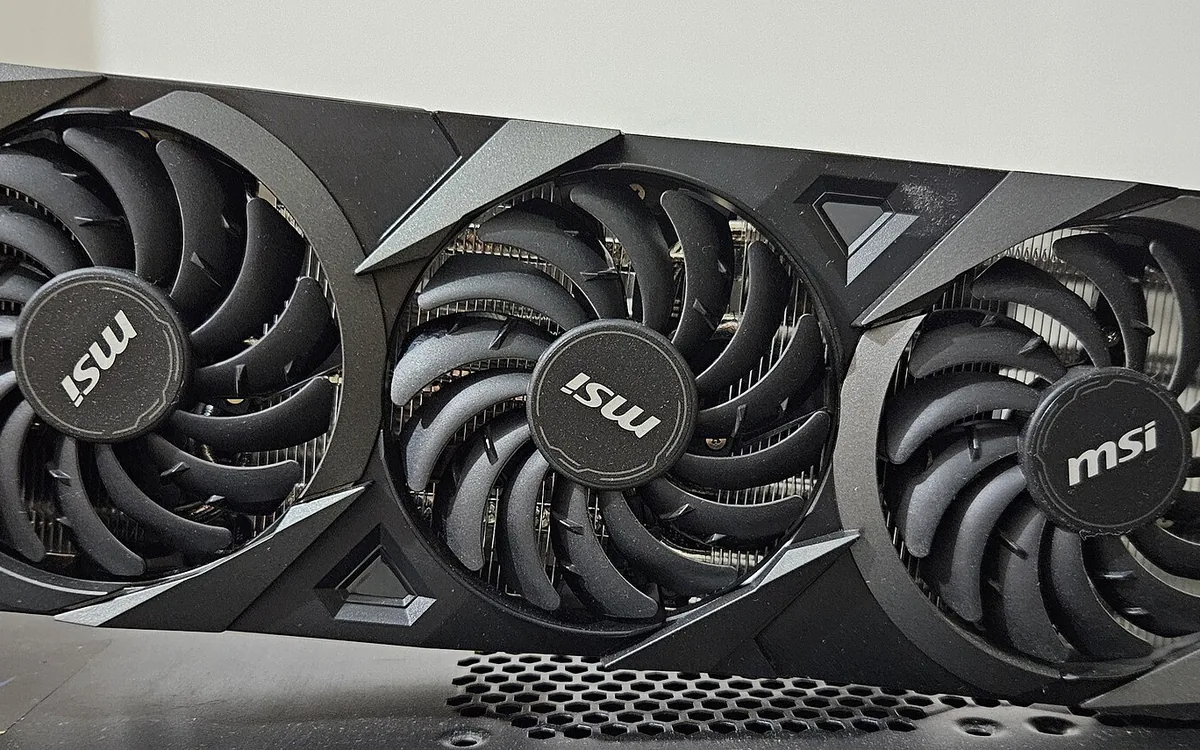
The card takes longer than the processor to finish each frame. It handles textures, lighting, shadows, shaders, reflections and ray tracing, and when that workload exceeds what the card can process — or what its memory can hold — the processor waits. This is the normal state for a gaming PC and the one you generally want, because it means you are getting everything the processor has to give and you still have settings to trade.
Signs: GPU usage pinned at 95–100% with the processor relaxed; a large frame-rate drop when you raise resolution or quality; an immediate gain when you lower either; ray tracing causing unstable frame times; VRAM at its limit with textures loading late.
| Cause | Why it limits you | What to do |
|---|---|---|
| Card too slow for the target | Pixel and shader throughput sets the ceiling, and nothing else in the build raises it. | Match the card to the monitor. Check the pairing above before buying. |
| Not enough VRAM | Once memory is full the card swaps assets over PCIe, which causes stutter rather than low averages. | Lower texture quality, or buy more. See how much VRAM you need. |
| Ray tracing enabled | It is the single most expensive setting in most modern games. | Turn it down a notch before replacing hardware. Pair it with upscaling. |
| Resolution above the card’s class | 4K is roughly four times the pixel work of 1080p for the same scene. | Use DLSS, FSR or XeSS, which render lower and scale up. |
| Overheating or dust | A hot card reduces its own clocks, so performance decays during a session. | Clean the heatsink, improve case airflow, adjust the fan curve. |
| Stale drivers | New releases often carry large per-title optimisations. | Keep drivers current, and try hardware-accelerated GPU scheduling both ways. |
3. RAM bottleneck
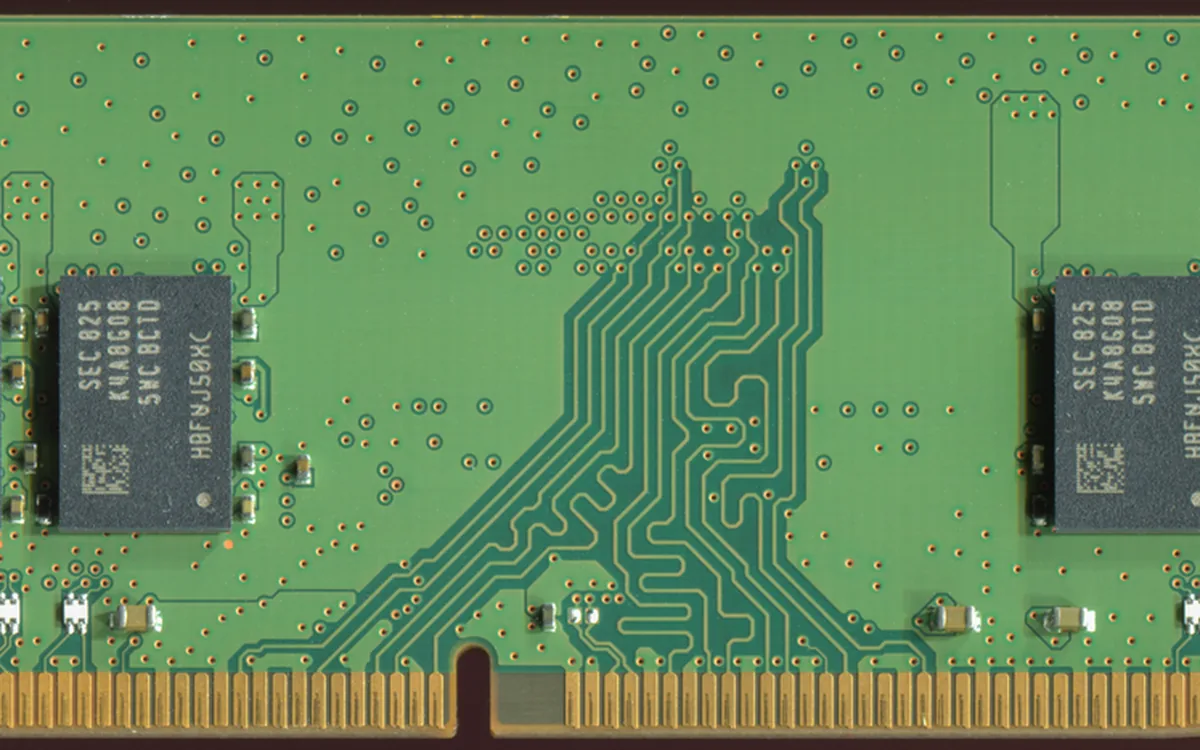
Memory rarely limits a system through raw capacity alone. The more common causes are a single-channel configuration running at half the available bandwidth, or an XMP or EXPO profile left disabled in the BIOS so the kit runs at the motherboard default rather than its rated speed. The symptom is not a lower average frame rate but a widening gap between that average and your 1% lows, usually when a game streams in a new area.
Signs: memory usage close to full during ordinary play; stutter on entering new areas; slow switching between applications; disk activity rising because the page file is in use; brief freezes with normal temperatures; an immediate improvement from closing background programs.
| Cause | Why it limits you | What to do |
|---|---|---|
| Too little capacity | Windows moves less-used data to the drive, which is orders of magnitude slower than RAM. | 16GB for gaming, 32GB if you multitask or create. |
| Single-channel | One stick gives roughly half the bandwidth of two, and integrated graphics suffer worst. | Always populate two matched slots. Check the board manual for which pair. |
| XMP or EXPO disabled | The kit runs at the JEDEC default, often far below what you paid for. | Enable the profile in BIOS and test for stability. |
| Mismatched kits | Mixed modules can fall back to the slowest common timings or refuse to train. | Buy capacity as a single matched kit where possible. |
| Choosing by frequency alone | Latency and timings matter as much as the headline number. | Compare effective latency, not just MT/s. See DDR4 vs DDR5. |
4. Storage bottleneck
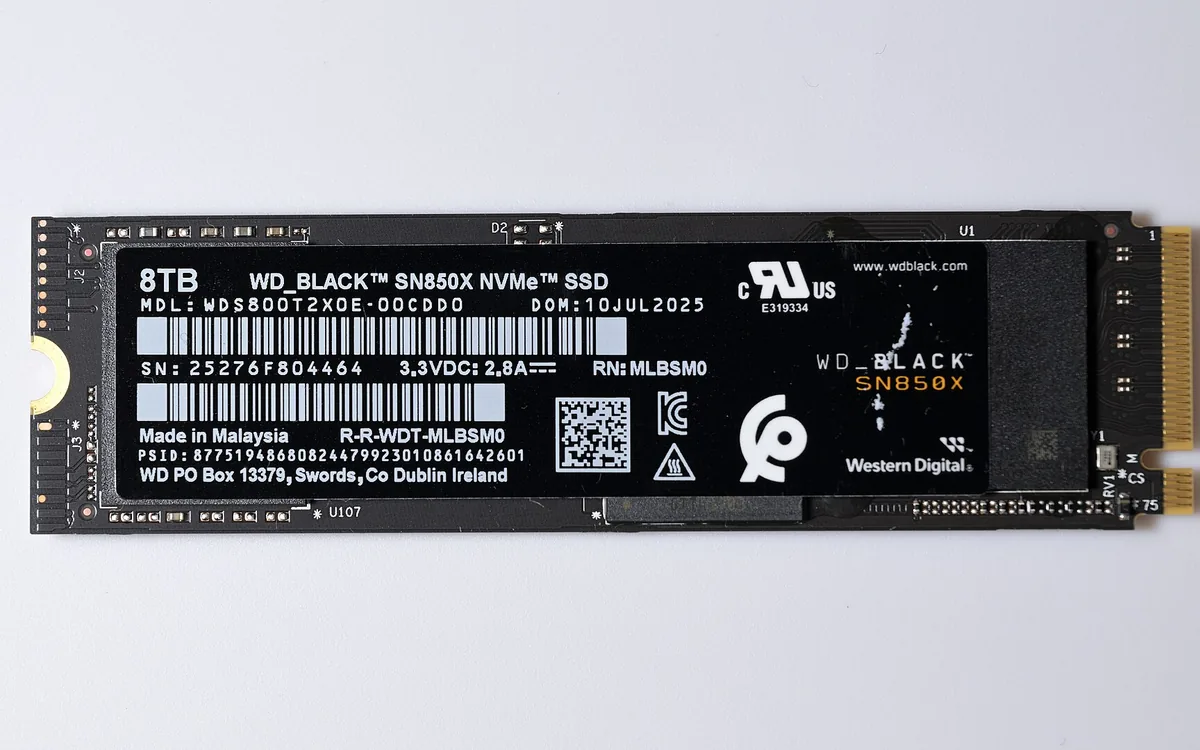
A drive limits loading time, asset streaming and general responsiveness — not frame rate in a scene that is already loaded. Moving a game from a hard drive to an SSD shortens load screens and reduces texture pop-in as you move through a level. It does not raise average frames per second, because the drive is no longer in the path once assets are in memory. Replacing a SATA SSD with an NVMe one changes less than people expect for gaming specifically.
Signs: long loading screens; textures and objects appearing late as you move; brief freezes when a game streams in new terrain; disk usage at 100% with low transfer speed; large file copies slowing sharply partway through.
| Cause | Why it limits you | What to do |
|---|---|---|
| Game installed on a hard drive | Mechanical seek time cripples the many small random reads that streaming needs. | Move the game to an SSD. This is the single biggest storage win. |
| Drive nearly full | SSDs slow as free blocks run out, and the page file has nowhere to grow. | Keep roughly 10–15% free. |
| NVMe overheating | The controller throttles during sustained transfers. | Fit the heatsink that came with the board, and check airflow reaches the slot. |
| Shared PCIe lanes | Some M.2 slots borrow lanes from the graphics slot or run at a lower generation. | Read the board manual and use the CPU-attached slot for the primary drive. |
| Background disk activity | Updates, cloud sync and antivirus scans compete for the same queue. | Schedule them outside play sessions. |
5. Power supply bottleneck
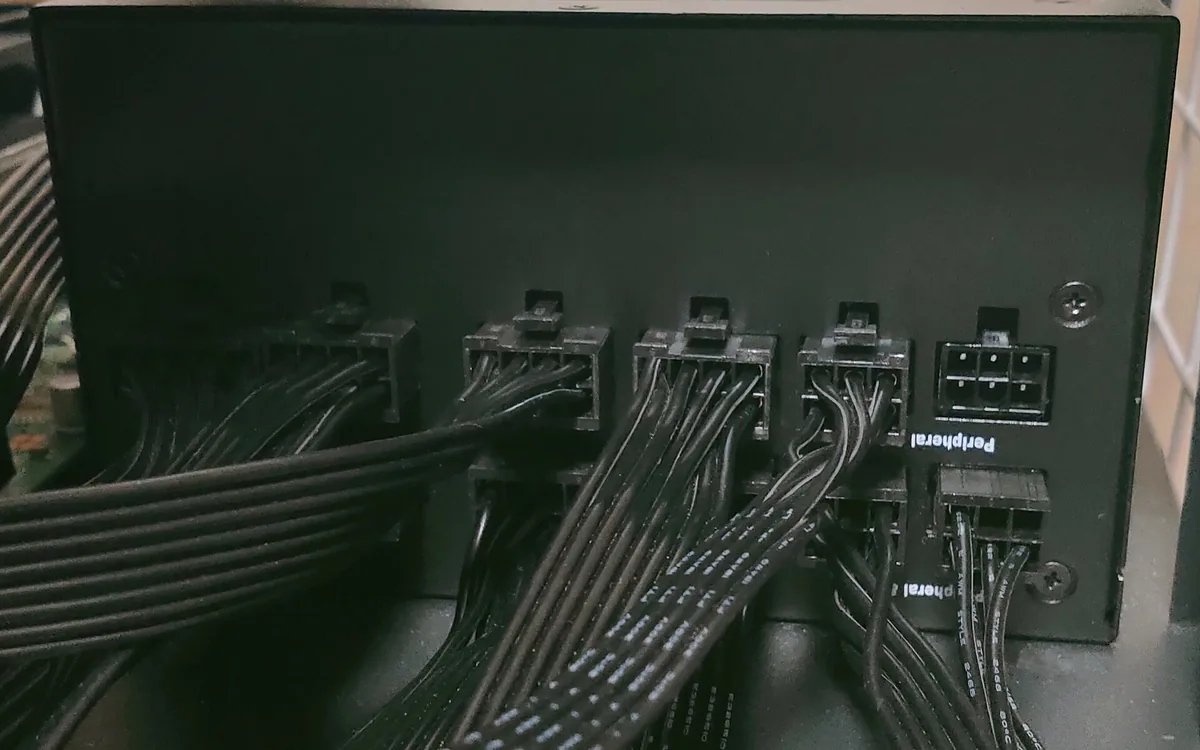
An undersized power supply does not gradually reduce performance. It holds up fine until a sudden spike in graphics card draw trips the protection circuit, and the machine restarts or the screen goes black under load while lighter settings stay stable. Modern cards draw brief transient peaks well above their rated figure, which is why a unit sized only to the sum of the sticker ratings can still fail. A higher-wattage unit does not force extra power into the hardware; each part draws what it needs.
Signs: shutdowns or restarts under load but not at idle; the screen going black when GPU load spikes; crashes that stop when you lower the card’s power limit; a new card causing instability the old one never did; the unit needing its rear switch cycled before it will start again.
| Cause | Why it limits you | What to do |
|---|---|---|
| Wattage too low | The unit cannot supply peak demand, so protection cuts the whole system. | Size it with our PSU calculator, which works from real PL1/PL2 and board power figures. |
| Transient spikes ignored | Cards can briefly pull far above their rated draw; sticker arithmetic misses it. | Leave headroom above the steady-state total rather than matching it exactly. |
| Poor-quality unit | Rated wattage means little without the rail quality and protections to back it. | Check the model on a PSU tier list before buying. |
| Aged unit | Capacitors degrade, so a unit that coped five years ago may not now. | Treat a unit over roughly seven years old as suspect in a new build. |
| Wrong or adapted connector | Some cards need a 12V-2×6 connector; adapters and poor seating cause real failures. | Use the cable the unit shipped with and seat it fully. A hot or discoloured connector is a safety issue, not a performance one — power down and inspect it. |
6. Thermal bottleneck
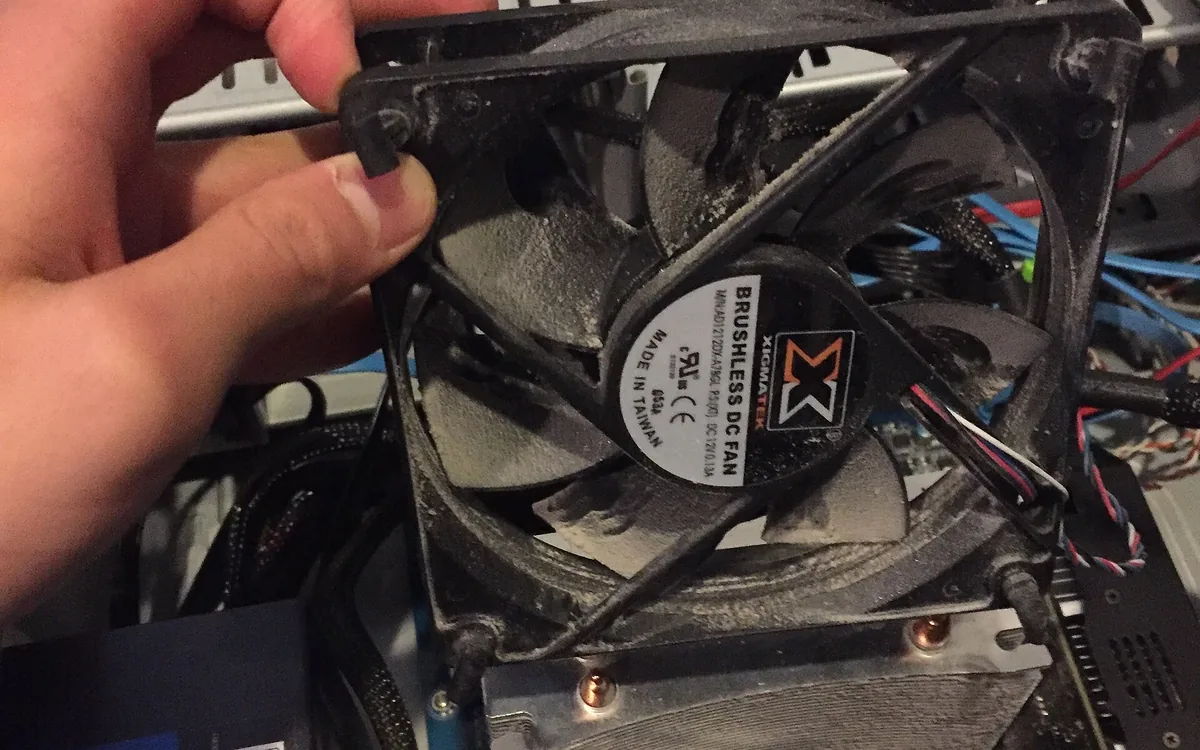
Thermal throttling is the one limit that will not reproduce in a short test. The system starts a session at full boost clocks, then drops them once a component reaches its temperature or power limit, so frame rate falls after five or ten minutes of play and recovers once things cool. If performance is fine at first and degrades predictably, the problem is cooling rather than the pairing. High temperature alone is not the issue; the issue is heat forcing clocks down.
Signs: clock speeds falling as temperatures climb; frame rate dropping after several minutes and recovering after a break; frame-time spikes late in a session; better performance with the side panel off or in a cooler room; benchmark scores declining across repeated runs.
| Cause | Why it limits you | What to do |
|---|---|---|
| Dust in heatsinks and filters | Blocked fins stop heat leaving the system however good the cooler is. | Clean fans, fins and filters with the machine powered down. |
| Poor case airflow | Hot air recirculates instead of leaving, raising every component’s temperature. | Balanced intake and exhaust, and keep cables out of the main path. |
| Cooler undersized for the chip | A cooler rated below the part’s sustained power cannot hold its clocks. | Match the cooler to PL2 or the AMD equivalent, not to the base figure. |
| Old or badly applied thermal paste | Dried or uneven paste leaves gaps that block heat transfer. | Clean both surfaces and reapply a sensible amount. |
| Aggressive overclock or voltage | Extra voltage raises heat faster than it raises performance. | Back the overclock off, or undervolt and test for stability. |
| Blocked laptop vents | A bed, sofa or lap closes the intake the cooling system depends on. | Use a hard flat surface, and a stand if the machine runs hot. |
7. Network bottleneck
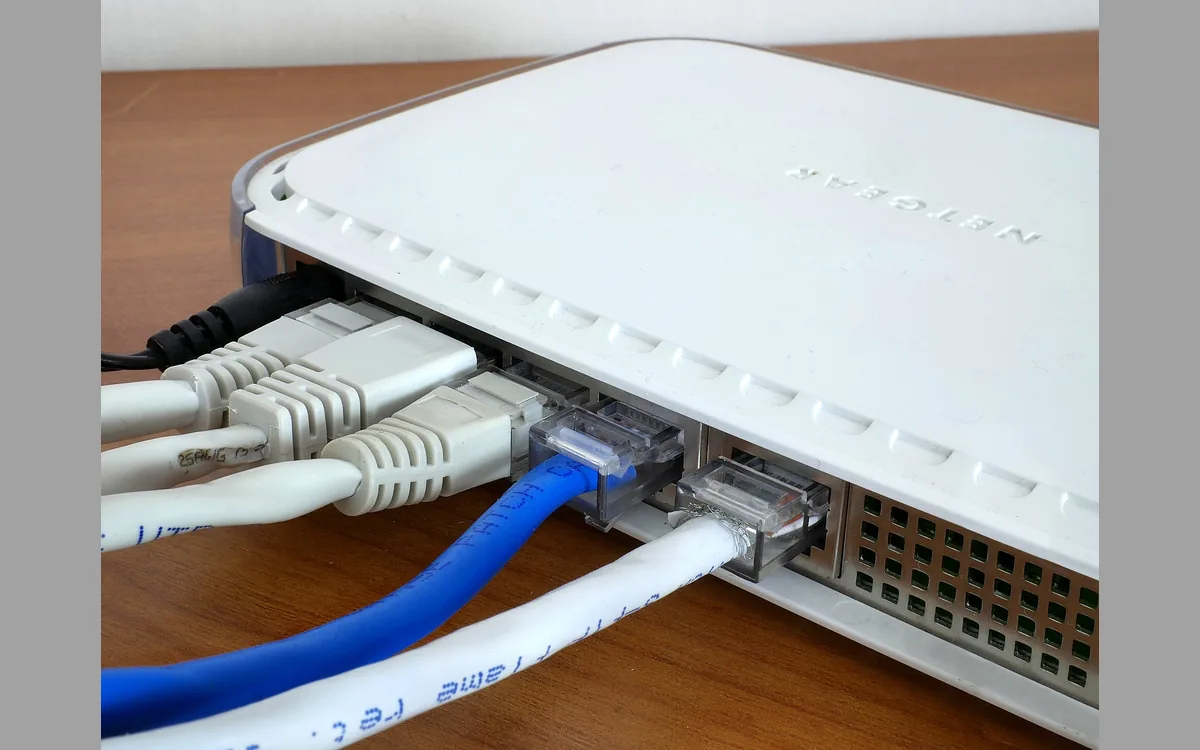
A network limit does not reduce your local frame rate, which is why it gets misdiagnosed so often. It affects online play, cloud gaming, voice chat and downloads. What matters is not just bandwidth but latency, jitter and packet loss: a 100 Mbps connection over weak Wi-Fi from another room can feel far worse than a slower wired one.
Signs: high ping while frame rate and component loads look fine; players appearing to teleport or snap backwards; shots registering late; voice chat breaking up; everything degrading the moment another device starts a download.
| Cause | Why it limits you | What to do |
|---|---|---|
| Weak Wi-Fi signal | Lost packets are retransmitted, which raises latency and jitter sharply. | Use Ethernet where you can, or move the router into the open. |
| Upload saturated | A full upload queue delays outgoing game packets even with download to spare. | Pause cloud sync and uploads, or enable QoS on the router. |
| Distant game server | Physical distance sets a floor on ping that no amount of bandwidth fixes. | Pick the nearest region in the game’s server settings. |
| Too many devices | An older router runs out of capacity handling many simultaneous connections. | Disconnect what is idle, or replace the router. |
| Unnecessary VPN | Routing traffic through another server lengthens the path. | Turn it off while gaming unless it demonstrably helps your route. |
Compatibility limits are a separate question again: a processor and graphics card can be perfectly balanced and still not work together in the case and board you own. The PC builder checks socket, memory generation and power draw before you buy, and AM4 versus AM5 covers the upgrade-path question for AMD builds specifically.
What a bottleneck looks like in specific games
No calculator can tell you how one particular title will behave, because engines differ enormously in how they split work between the processor and the card. What is predictable is the pattern: certain kinds of game are reliably processor-bound and others reliably graphics-bound, and knowing which kind you play tells you how much weight to put on your result.
Reliably processor-bound
Microsoft Flight Simulator is the textbook case. It streams terrain, weather and air traffic continuously, and much of that work lands on a small number of threads. People routinely pair it with a flagship card and find the frame rate barely moves, because the limit was never the card.
Cities: Skylines II, Anno 1800, Stellaris and simulation games generally scale with how much the processor can compute per tick. A large city or a late-game save will crawl on a weak processor regardless of resolution, and dropping settings does nothing at all.
Counter-Strike 2, Valorant, Fortnite in performance mode and Escape from Tarkov are processor-bound for a different reason: competitive players run low settings at high refresh rates, which strips the card’s workload to almost nothing and leaves the processor preparing hundreds of frames per second. If you are chasing 240Hz, treat a CPU-limited result as the serious one.
Total War battles and Arma, with thousands of individually simulated units, belong in the same category.
Reliably graphics-bound
Cyberpunk 2077 with ray tracing or path tracing enabled is the most graphics-hungry mainstream game there is. At 1440p or above with those settings on, essentially any current processor is sufficient and the card decides everything.
Red Dead Redemption 2, Alan Wake 2, Black Myth: Wukong and Horizon Forbidden West are heavy on shaders, foliage and lighting rather than on simulation. Lowering the preset gives frames back immediately, which is the signature of a graphics limit.
Anything played at 4K belongs here by default. At that resolution the pixel workload dominates so completely that the processor rarely matters, which is exactly what the calculator’s 1.2 weighting at 4K is modelling.
The ones that depend entirely on settings
Minecraft with shaders is graphics-bound; vanilla Minecraft with a large render distance is processor-bound. Star Citizen is bound by whichever part you have less of, plus your drive. Battlefield and large-scale multiplayer shift toward the processor as player counts rise, because every other player is state to track.
The practical takeaway: run the calculator at your real resolution, then adjust your reading by what you actually play. If your library is mostly simulation and competitive shooters, weight the CPU side harder than the percentage suggests. If it is mostly single-player showcases at high settings, weight the card.
Resolution decides which part is the limit
Bottlenecks are not fixed properties of a pair of parts. The resolution you play at changes the balance between them, which is why selecting it honestly matters more than any other input on this page.
| Resolution | Pixels per frame | Usually limited by | What that means for you |
|---|---|---|---|
| 1080p | 2.07 million | The processor | The card finishes frames quickly, so the processor has to feed it constantly. High refresh-rate play at this resolution is the most CPU-hungry thing a gaming PC does. |
| 1440p | 3.69 million | Either, depending on the parts | The most balanced target, and the resolution this calculator’s weighting is most dependable at. |
| 4K | 8.29 million | The graphics card | Four times the pixel work of 1080p for the same scene. The processor stops being the constraint almost regardless of what it is. |
Two practical consequences follow. First, a processor bottleneck you measured at 1080p may simply vanish if you move to a 1440p monitor, which occasionally makes a monitor the cheaper upgrade than a CPU. Second, if your result says you are GPU-limited at 4K, upscaling is the lever to reach for before a new card: rendering at a lower internal resolution and scaling up targets exactly the thing that is constraining you.
Select the resolution you actually play at. Checking a pairing at 1080p when you own a 4K monitor will name the wrong component.
How to confirm the result on your own PC
This calculator works from benchmark data, not from your machine. If you already own the parts, three checks will tell you what is actually happening, and they take about ten minutes between them.
The Task Manager check
Press Ctrl+Shift+Esc, open the Performance tab, and play for a few minutes in a demanding area before looking. If CPU usage is high across cores while the GPU sits in the 40–70% range, you are processor-limited. If the GPU is at 95–100% and the processor has obvious headroom, you are graphics-limited, which is the healthy case. Switch the CPU graph to logical processors first: a single pinned core with a low total is still a CPU bottleneck.
The resolution scaling test
Drop the resolution one step, from 1440p to 1080p, and compare frame rates in the same scene. A gain of 30% or more means the graphics card was the constraint. A gain under 10% means the processor was, because you have removed graphics work from a system that was never short of it. This is the most reliable of the three and needs no extra software.
The monitoring overlay
MSI Afterburner with RivaTuner, or CapFrameX, will put per-core CPU usage, GPU usage, clocks, temperatures and frame times on screen while you play. Frame times matter more than averages here: a steady 90 frames per second feels better than an average of 110 that swings between 60 and 150. This is also the only one of the three that will catch thermal throttling, because you can watch clocks fall as temperatures rise.
If you want a shorter version of this process with the thresholds spelled out, our five minute PC check walks through it.
Bottlenecks by what you actually use the PC for
Balance is not one target. A machine tuned for competitive shooters and a machine tuned for 4K video work want the money spent in different places, and the same pairing can be well matched for one and badly matched for the other.
| Use | What decides performance | Where to spend |
|---|---|---|
| Competitive gaming at high refresh | Single-thread processor speed and cache. The card is barely loaded at low settings. | Processor first, then a fast monitor. A mid-range card is plenty. |
| Single-player gaming at 1440p or 4K | Graphics card throughput and VRAM. | Card first. A mid-range current processor will not hold you back. |
| Gaming while streaming | Processor headroom on top of the game, even with hardware encoding. | More cores than a pure gaming build needs, and 32GB of memory. |
| Video editing | Core count for export, card for timeline playback and effects, memory for 4K and above. | Balanced, leaning to cores and memory. Fast storage matters more here than in gaming. |
| 3D rendering | Almost entirely parallel throughput, on whichever engine you use. | Cores for CPU renderers, VRAM and card power for GPU renderers. |
| Programming and general work | Single-thread speed, memory, and drive responsiveness. | Memory and an NVMe drive. The card is close to irrelevant. |
This is why a result can look alarming and not matter. A 35% GPU-limited figure on a machine used for 4K single-player gaming is describing precisely the state you want. The same figure on a machine used for 1080p competitive play would be a genuine waste of a processor.
Eight things people get wrong about bottlenecking
“A bottleneck means one of my parts is faulty”
It means one part finishes its work first. Every computer ever built has a limiting component under every workload. The word sounds like a defect and is not one.
“I should aim for 0%”
Chasing zero means buying parts to satisfy a number rather than to play games better. Anything under about 15% is inside the noise you lose to drivers, background processes and the operating system regardless of what you own.
“100% GPU usage is bad”
It is the goal. A card pinned at 99% is a card doing everything you paid for. It is 100% CPU usage with an idle card that should worry you.
“More cores will fix my gaming performance”
Past about eight cores, games stop caring. What they want is fast single-thread performance and a large cache, which is why some processors with fewer cores beat ones with more. 3D V-Cache is the clearest example.
“A bottleneck will damage my hardware”
No. An underused component runs cooler and does less work. Damage comes from heat, voltage and bad power delivery, none of which an imbalance causes.
“An SSD will raise my frame rate”
It will shorten load screens and reduce texture pop-in, both of which are worth having. It will not raise average frames per second in a scene that is already in memory.
“Faster RAM is a waste of money”
Buying an exotic kit usually is. Running the kit you already own at its rated speed, in two channels, is not — and it is free. A lot of “my CPU is bottlenecking me” posts are a disabled memory profile.
“Bottleneck calculators are all useless”
Many have earned the reputation, by returning alarming percentages for every pairing from invented scores and then recommending a purchase. A calculator cannot predict a specific game’s frame rate from two numbers. What it can honestly do is tell you whether the gap between your parts is wide enough to be worth money, and show the data it used to decide. That is the standard this one is trying to meet.
Which upgrade actually pays
Suppose the calculator names your processor as the limit at 1080p and you have a fixed budget. The order below is roughly how much performance each step returns per pound or dollar spent, and the first three are free.
- Enable XMP or EXPO. Two minutes in BIOS. In a CPU-limited scenario this is frequently the largest single gain available, because memory bandwidth and latency feed the processor directly.
- Close what you are not using. Browsers with many tabs, launchers, overlays and recording software all take processor time. Measure with and without before assuming hardware is at fault.
- Check for thermal throttling. Watch clocks over a ten minute session. A throttling processor behaves exactly like a slower one, and cleaning a heatsink costs nothing.
- Add a second memory stick. If you are running single-channel, this is the cheapest hardware fix there is and roughly doubles available bandwidth.
- Move to 16GB, or 32GB if you stream or create. Cheap, and it removes the paging stutter that gets misread as a processor problem.
- Upgrade the processor within your existing socket. Far cheaper than a platform change. Check what your board supports first — AM4 still has strong options, and AM4 versus AM5 covers whether to move at all.
- Change platform. New processor, board and often memory together. The largest gain and by far the largest bill, so confirm the limit first.
If the result named the graphics card instead, the order inverts: enable upscaling, lower the one or two most expensive settings (ray tracing and shadows, usually), confirm the card is not thermally limited, then buy. And check your power supply can take the new card before you order it — our PSU calculator sizes for transient spikes rather than sticker ratings.
A final sanity check that costs nothing: run your current pairing and your intended pairing through the calculator above and compare the two results. If the number barely moves, you have just saved the price of the part.
Why use this calculator
Four things that separate it from the rest of the field.
Accurate, and honest about where it is not
Updated algorithms, component-specific scoring and a published formula. Where the method is weaker, at 1080p and 4K, the page says so instead of implying every resolution is equally reliable.
An up-to-date component database
Thousands of processors and graphics cards from published benchmark datasets, including current Ryzen, Core Ultra, RTX 50-series and RX 9000-series parts, refreshed as new hardware is validated.
Visual, not just a number
Utilisation bars, a balance score, a frame-rate estimate across every resolution, and a CPU-versus-GPU split, so you can see where the imbalance actually sits rather than reading one figure.
Built for everyone, free, no account
Gamer, creator, student or first-time builder: pick two parts and press calculate. No sign-up, no paywalled result, no email gate, and nothing held back behind a pro tier.
Why this is the most accurate bottleneck calculator
Most bottleneck calculators show a percentage and nothing about how it was reached. That is the single biggest difference between this tool and the field: every number here traces back to a formula you can actually see, from the workload adjustment through the 40,000 and 38,000 normalisation divisors and the 0.7/1.0/1.2 resolution weighting to the band thresholds. A tool that will not show its working cannot be checked, and a result you cannot check is not more trustworthy for looking confident.
Several competing calculators treat resolution as a label rather than an input, offering it as a dropdown that barely changes the underlying number. That gets the physics wrong. Rendering pixels is graphics work and game logic is processor work, so the same CPU and GPU pairing can be limited by different parts at different resolutions. A calculator that does not let resolution meaningfully move the result is quietly averaging over the variable that should be driving the answer.
A number of these tools also publish precision they cannot back up, quoting error percentages or accuracy scores with no explanation of what was measured against what. We would rather tell you plainly that this is an estimate built from synthetic benchmark scores, that it cannot see your specific game engine, your memory speed or your cooling, and that the fixed band thresholds can read harshly at 4K.
The utilisation breakdown is another point most calculators skip entirely, returning a percentage and a one-line verdict with nothing showing how the gap plays out between the two parts. Seeing the saturated component alongside the other one’s estimated load is what makes a result actionable rather than just a badge.
Finally, the upgrade guidance here is tied to the actual result rather than generic advice. A calculator that tells everyone with a CPU bottleneck to buy a faster CPU is not adding anything past the verdict it already gave. This one distinguishes a marginal lead from a decisive one, gives separate guidance for 4K gaming and high refresh-rate 1080p or 1440p play, and says plainly when neither upgrade is worth the money, which happens more often than the upgrade-focused tone of most competing pages would suggest.
One last point of honesty, since it comes up: different bottleneck calculators will give you different percentages for the same two parts. They use different benchmark sources, different normalisation and different weighting, so they are not measuring quite the same thing. Ours tells you what it did and why. If three tools disagree on the number but agree on which component is the limit, that agreement is the useful part.
The other calculators
Balance is one question. These cover the rest of the build.
PSU Calculator
Size a power supply from real PL1/PL2 and board power figures, including the transient spikes that trip protection on modern cards.
FPS Calculator
Estimate the frame rate a pairing will reach in a specific game, and see what dropping the resolution or preset would give back.
PC Builder
Put a full parts list together and check that the socket, memory standard, cooler and case all actually work together.
Conclusion
Every PC has a limiting component. Finding out which one it is costs nothing and takes about thirty seconds, and it is the difference between an upgrade that changes how your games feel and one that changes your bank balance and nothing else.
Use the calculator above to check the pairing you own or the pairing you are considering. Read the named limiting component first, the utilisation split second, and the percentage last. Then, if you already own the parts, confirm it with the Task Manager and resolution tests on your own machine — the two together will tell you more than any calculator can on its own.
And if the answer comes back as excellent balance, take it at face value. The most useful thing a tool like this can tell you is that you do not need to buy anything.
Frequently asked questions
What is a bottleneck calculator?
It is a tool that takes a processor and a graphics card, compares how fast each one is relative to the other, and tells you which is holding the other back and by roughly how much. It is a planning instrument rather than a measurement: it works from published benchmark data for the parts, not from readings taken on your machine. That makes it useful for deciding what to buy before you have bought it, which is exactly when the question matters most.
What does a bottleneck actually mean on a gaming PC?
A bottleneck is the point where one part of your PC runs out of headroom before the others do, and everything else ends up waiting on it. In a gaming PC that part is almost always the processor or the graphics card. The frustrating thing is that the slower part does not announce itself u0026mdash; you just see a frame rate lower than the hardware on paper should deliver. Every PC has a limiting component somewhere; the question worth asking is not whether you have a bottleneck but whether the gap is big enough to be worth spending money on.
How does this bottleneck calculator work?
It first scales each part’s benchmark score by how hard your use case, genre and quality preset lean on it, then normalises both onto one scale by dividing the adjusted CPU score by 40,000 and the adjusted 3D score by 38,000, then applies a resolution factor to the CPU side u0026mdash; 0.7 at 1080p, 1.0 at 1440p, 1.2 at 4K u0026mdash; because pixels are graphics work while game logic is not. Whichever adjusted score is lower is named as the limiting part, and the percentage is the proportional gap between the two. The whole formula is written out in the u003ca href=’https://pc-bottleneckcalculator.com/#how-the-calculation-works’u003ehow it works sectionu003c/au003e above.
How accurate is a bottleneck calculator, honestly?
It is a well-informed estimate, not a measurement, and it is worth being straight about that. It works from synthetic benchmark scores, which capture general throughput but cannot know how a specific game distributes its work, how fast your memory is, what your cooling allows, or what else is running. Treat the percentage as a guide to the size and direction of a mismatch. If you need a number for one particular game, benchmark that game u0026mdash; no calculator can substitute for it.
How should I read the result once I have it?
Read the named limiting component first, the utilisation split second, and the percentage last. The component tells you what an upgrade should be. The utilisation split tells you how much of one part is going unused. The percentage is the least informative of the three on its own, because it describes a gap between benchmark scores rather than frames you are losing. u003ca href=’https://pc-bottleneckcalculator.com/good-bottleneck-percentage/’u003eWhat counts as a good percentageu003c/au003e goes through the thresholds properly.
At what point does a bottleneck percentage become a problem?
Under 10% is excellent balance and the honest advice is to spend your money elsewhere. Up to 20% is a real but minor gap, inside the margin you lose to background processes and driver overhead anyway. From 20% to 30% is where a well-chosen upgrade starts paying for itself. Above 30% one component is meaningfully wasted by the other. Those bands are fixed thresholds, so read them alongside the named component rather than as a grade on your build.
Does the percentage tell me exactly how many frames per second I am losing?
No, and any tool implying it does is overselling itself. The percentage is the proportional gap between two adjusted benchmark scores. A 40% result means one component has roughly 40% more headroom than the other can use under those conditions, not that you are missing 40% of your frame rate. For a frame-rate estimate in a specific game, the u003ca href=’https://pc-bottleneckcalculator.com/fps-calculator/’u003eFPS calculatoru003c/au003e is the right tool.
Why do two bottleneck calculators give different percentages for the same parts?
Because they are not measuring quite the same thing. Different tools use different benchmark sources, different normalisation, and different resolution weighting, so the numbers are not directly comparable. The useful test is whether they agree on which component is the limit. If three calculators disagree on the figure but all name the processor, that agreement is the part worth acting on.
What is a CPU bottleneck, and what brings one about?
A CPU bottleneck means the processor cannot prepare frames as fast as the card can draw them, so the card idles. It feels like a frame rate that refuses to climb however far you drop the graphics settings, often with uneven pacing in busy scenes. It shows up most at 1080p and at high refresh rates, and the usual causes are too few threads, weak single-thread performance, a small cache, slow or single-channel memory, or background software taking the time the game needed. u003ca href=’https://pc-bottleneckcalculator.com/how-to-fix-cpu-bottleneck/’u003eSeveral fixes do not involve a new processoru003c/au003e.
What is a GPU bottleneck, and what brings one about?
A GPU bottleneck is the opposite: the card runs at full load while the processor has capacity spare. The frame rate responds immediately when you lower the resolution or the preset. This is the normal state for a gaming PC and generally the one you want, since it means you are getting everything the processor has to give. It becomes more likely at 1440p and 4K, with ray tracing on, or when VRAM runs short. u003ca href=’https://pc-bottleneckcalculator.com/what-is-a-gpu-bottleneck/’u003eHow to spot one in two minutesu003c/au003e.
Which is worse for gaming, a CPU or a GPU bottleneck?
A CPU bottleneck is worse. It produces inconsistent frame delivery, stutter and poor 1% lows even when the average looks acceptable, and you cannot fix it with settings u0026mdash; lowering them gives the card even less to do. A GPU bottleneck just means the card is working at full capacity, which is where you want to be, because resolution, upscaling and quality settings then give you something to trade.
Can a processor really bottleneck a graphics card?
Yes, and it is the most expensive version of the mistake. Pair an Intel Core i3-12100F with a GeForce RTX 4090 in this calculator and it reports 75% at 1080p with the card estimated at 25% load u0026mdash; roughly a quarter of what it is capable of. The card is not faulty and the processor is not broken; they are simply three tiers apart, and the slower one sets the pace.
How much does RAM affect bottlenecking?
More than people expect, but rarely through capacity alone. The common culprits are a single-channel configuration running at half the available bandwidth, or an XMP or EXPO profile left disabled so the kit runs at the motherboard default instead of its rated speed. The symptom is not a lower average frame rate but a widening gap between the average and your 1% lows. u003ca href=’https://pc-bottleneckcalculator.com/ddr4-vs-ddr5/’u003eDDR4 versus DDR5u003c/au003e covers which actually matters for gaming.
Does drive speed cause bottlenecks?
It costs you loading time and asset streaming, not frame rate. Moving a game from a hard drive to an SSD shortens load screens and reduces texture pop-in as you move through a level, but it does not raise average frames per second in a scene that is already loaded, because the drive is out of the path once assets are in memory. Going from a SATA SSD to an NVMe one changes less than most people expect for gaming specifically.
Why does resolution change the answer so much?
Because pixels are graphics work and game logic is not. At 1080p the card finishes frames quickly, so the processor has to feed it constantly u0026mdash; that is where CPU limits appear. At 4K the same scene is roughly four times the pixel work, so the card becomes the constraint almost regardless of the processor. One pairing can therefore be CPU-limited at 1080p and GPU-limited at 4K, which is why selecting the resolution you actually play at matters more than any other input here.
Why does my game stutter when neither part looks maxed out?
Stutter is usually a frame-time problem rather than an average-throughput problem, so total utilisation figures hide it. The common causes are a single pinned CPU core while the overall figure looks relaxed, memory running at the wrong speed, VRAM filling up and swapping assets over PCIe, or a drive struggling to stream in new terrain. Watch per-core CPU usage and frame times rather than the headline percentages.
How do I actually fix a bottleneck?
First get the direction right, because the fixes are not interchangeable. If you are GPU-limited, lower the resolution or preset, or turn on DLSS, FSR or XeSS. If you are CPU-limited, lowering settings makes it worse; instead enable XMP or EXPO, close background software, update the chipset and graphics drivers, check for thermal throttling, and reduce CPU-heavy settings like crowd density and draw distance. Only then consider new hardware.
CPU or GPU first, which should I upgrade?
Upgrade whichever one the result names as the limit, at the resolution you actually play at. If you are about to move to a higher-resolution monitor, weight that in: a processor bottleneck measured at 1080p can disappear at 1440p, which occasionally makes the monitor the better buy than either component. u003ca href=’https://pc-bottleneckcalculator.com/best-cpu-for-gaming/’u003eOur gaming CPU picksu003c/au003e cover the sensible options at each budget.
Will upgrading one part alone solve it?
Often, yes, as long as it is the right part. The thing to watch is that removing one limit usually exposes the next one. Replacing a weak card in a system with an older processor can take you from GPU-limited straight to CPU-limited, which is still progress but less than the benchmark charts implied. Running your intended pairing through the calculator above before buying shows you where you will land rather than where you are.
Does overclocking close the gap?
A little, and less than it used to. Modern processors and cards already boost close to their thermal and power limits out of the box, so a manual overclock typically buys single-digit percentages for meaningfully more heat and noise. Enabling the memory profile in BIOS is the exception u0026mdash; it is free, takes two minutes, and in CPU-limited scenarios often does more than overclocking the processor itself.
Does bottlenecking damage my PC?
No. A bottleneck is wasted performance, not a safety issue. The underused component simply idles more than it needs to; nothing overheats or wears out faster because of an imbalance on its own. Damage from an unrelated cause, like inadequate cooling or an undersized power supply, can look similar in symptoms but is a different problem with a different fix.
Is a 0% bottleneck realistic?
Close to it u0026mdash; pair a Ryzen 7 9800X3D with an RTX 4090 at 1440p and this tool returns 3%, a balance score of 94 out of 100, because their benchmark scores are almost identical. As a permanent state of a real machine, no. Every workload eventually meets a hardware or software limit, and the limiting component changes between games, settings and resolutions. A balanced system just keeps that limit small enough not to matter for what you do.
Does it work for laptops and prebuilt systems?
Laptop processors and graphics chips are in the lists, so yes, with one caveat worth taking seriously. Two laptops using identically named parts can perform very differently because manufacturers set different power limits and cooling. Select the laptop variant of the chip rather than the desktop one, and treat the result as a comparison between parts rather than a prediction for your specific machine.
Can I check a PS5 or an Xbox with it?
No, and no calculator built on desktop benchmark data can. Consoles use semi-custom chips with a shared memory pool and a fixed hardware target that developers optimise against directly, so there is no meaningful equivalent score to compare. The same applies to Apple M-series chips, where the CPU, GPU and memory sit on one package and cannot be separated the way a desktop pairing can.
Does upscaling like DLSS or FSR affect which part is the bottleneck?
Yes, and usefully so. Upscaling renders the game at a lower internal resolution and reconstructs it, which cuts the graphics workload and can lift a GPU-limited result considerably. What it does not do is change how fast the processor prepares the underlying frames, so if you were CPU-limited it will not help much. Frame generation raises the number on screen without touching that underlying rate, which is why a higher displayed figure does not mean a CPU limit has gone.
Does my monitor's refresh rate change the result?
Not the calculation, but very much the interpretation. Refresh rate sets the frame rate you are aiming for, and a higher target multiplies the work the processor has to do: 240Hz at 1080p is the most CPU-hungry thing a gaming PC does. A pairing that looks balanced for 60Hz play can be clearly processor-limited once you are chasing 165Hz on the same monitor resolution.
I stream while I game. Does that change my bottleneck?
It adds a real CPU load on top of the game, so a pairing that is marginal becomes processor-limited more easily. Modern graphics cards have dedicated encoders that handle the actual video encoding off the main cores, which helps a lot, but scene composition, chat, alerts and the browser sources still cost processor time. If you stream regularly, treat a CPU-limited result as more serious than the percentage suggests.
Does the calculator know about power or thermal throttling?
No, and it cannot. Both are properties of your specific cooling, case airflow, ambient temperature and power limits rather than of the parts you selected. A throttling component behaves like a slower one, which is why a machine can underperform its calculated result. If your frame rate is fine for the first five minutes and then falls, that is thermal, not the pairing, and the u003ca href=’https://pc-bottleneckcalculator.com/psu-calculator/’u003ePSU calculatoru003c/au003e covers the power side.
What should I do if my exact CPU or GPU is not in the list?
Pick the closest model from the same generation and tier u0026mdash; the adjacent part in the same family will normally land you within a few percent, which is well inside the tool’s own margin. Newly released hardware is added once there is published benchmark data to add; until then there is no score to compare, and guessing one would make the result look more precise than it is.
What is the difference between this and your FPS calculator?
This page answers whether your two parts are matched and which one is holding the other back. The u003ca href=’https://pc-bottleneckcalculator.com/fps-calculator/’u003eFPS calculatoru003c/au003e answers how many frames per second a pairing is likely to reach in a specific game and what lowering the resolution or preset would give back. Balance first, then expected performance u0026mdash; and if you are planning a whole machine, the u003ca href=’https://pc-bottleneckcalculator.com/pc-builder/’u003ePC builderu003c/au003e checks that the parts physically work together.
Image credits. Calculator screenshots are our own. Hardware photographs, in order of appearance: AMD Ryzen 7 5800X3D by Phiarc (CC BY-SA 4.0); MSI GeForce RTX 3070 by TheStriker (CC BY 4.0); DDR4 memory module by PantheraLeo1359531 (CC BY 4.0); WD Black SN850X NVMe SSD by 4300streetcar (CC BY 4.0); modular ATX power supply by Project Kei (CC BY-SA 4.0); dusty CPU heatsink by Atomicdragon136 (CC BY 3.0); router and Ethernet cables by Santeri Viinamäki (CC BY-SA 4.0); gaming PC interior by Maximilian Schönherr (CC BY-SA 4.0). All via Wikimedia Commons.
