Hardware-Accelerated GPU Scheduling: On or Off in 2026?
 Tayyab Rehman
11 min read
Tayyab Rehman
11 min read
A Reddit thread tells you to turn it on. The next reply says it tanked their frame rate. A YouTube comment swears it fixed their stutter. Someone else blames it for crashing their game.
Meanwhile the setting sits buried four menus deep in Windows, switched off by default, with a label that explains nothing.
Here is the honest answer nobody leads with. Hardware-accelerated GPU scheduling helps a little, hurts a little, or does nothing at all, and which one you get depends on your graphics card generation, your processor, and whether you use frame generation. Anyone who tells you it is universally good or universally bad has not tested it on more than one machine.
That said, there is one situation where you have no choice at all, and almost no guide mentions it. If you want DLSS frame generation, the setting is mandatory.
This guide covers what it does, where to find it in Windows 11 and Windows 10, what to expect in real frame rates, and the specific cases where turning it off is the right call.
What you need to know first
You will finish knowing whether to leave this on or off for your exact hardware, and able to test it properly in about ten minutes rather than trusting a stranger’s anecdote.
I cover what the feature actually changes at a technical level, the exact click path in both Windows versions, realistic performance expectations by card generation, the frame generation dependency, and the handful of games where people consistently report problems.
Here is my position, stated plainly. For most people on a modern card this should be on and then forgotten about. The feature has matured a great deal since launch, and the horror stories circulating today mostly date from 2020 when it was genuinely unreliable.
Not covered here: driver level tuning, undervolting, and overclocking. Behaviour described reflects Windows 11 and Windows 10 as of September 2026.
What is hardware-accelerated GPU scheduling?
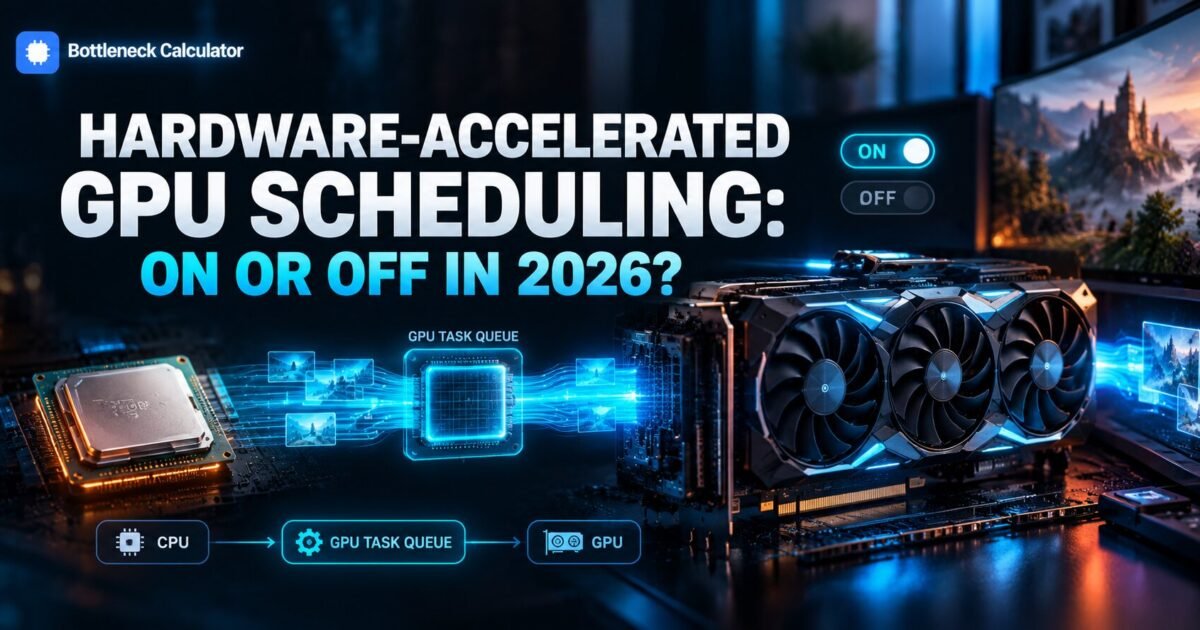
Hardware-accelerated GPU scheduling, often shortened to HAGS, hands management of your graphics card’s memory and task queue from Windows over to a dedicated processor built into the card itself. Microsoft introduced it in Windows 10 version 2004. The goal is lower latency and less work for your processor.
People search for this as hardware accelerated gpu scheduling without the hyphen, and it is the same feature either way. Normally Windows acts as a middleman. Your processor gathers rendering work, batches it, and passes it to the graphics card in groups.
With the feature enabled, a scheduling processor on the card handles that queue itself. The middleman step disappears.
Think of a restaurant where every order currently goes through a manager before reaching the kitchen. Hardware scheduling lets the kitchen take orders directly. Fewer hands, less delay.
What does hardware-accelerated GPU scheduling actually do?
It reduces the work your processor does managing graphics tasks, and shortens the path between a frame being prepared and being drawn. In practice this shows up as slightly lower latency and a small reduction in processor load. It does not make your graphics card faster in raw terms.
That distinction matters. What hardware accelerated gpu scheduling does is move work around rather than add power.
So the people who benefit most are those whose processor was the limiting component in the first place. If your graphics card is already pinned at full load, taking a small amount of work off the processor changes almost nothing.
Check which component actually limits you before expecting much. Our guide to spotting where your system runs out of headroom takes about two minutes and tells you whether this setting can help at all.
Should hardware-accelerated GPU scheduling be on or off?
The question people actually type is hardware accelerated gpu scheduling on or off, so here is the direct answer before the detail.
Turn it on if you have an RTX 20 series or newer, an RX 5000 series or newer, and up to date drivers. Turn it off if you see stutter, crashes, or recording problems after enabling it. For most modern systems the honest answer is that it is safe to leave on and the difference is small.
| Your situation | On or off | Why |
|---|---|---|
| RTX 40 or 50 series, want frame generation | On, required | DLSS frame generation will not run without it |
| Modern card, processor is your limit | On | Frees a little processor headroom |
| Modern card, graphics card is your limit | On, low impact | Harmless but expect almost nothing |
| Competitive shooter at high refresh | On | Small latency reduction is worth having |
| You record or stream with OBS | Test carefully | Historically the most reported conflict |
| GTX 10 series or older | Off | Unsupported or unreliable |
| You see new stutter after enabling | Off | Trust your own testing over any guide |
Notice that only two rows are strong recommendations. That is deliberate and it is the truth of this setting.
Where is the hardware acceleration setting in Windows?
In Windows 11 go to Settings, then System, then Display, then Graphics, then Change default graphics settings. The toggle sits at the top. In Windows 10 the path is Settings, System, Display, Graphics settings. If the option is missing entirely, your card or driver does not support it.
Windows 11 click path
- Press the Windows key and open Settings.
- Choose System, then Display.
- Scroll down and click Graphics.
- Click Change default graphics settings.
- Toggle Hardware-accelerated GPU scheduling, then restart.
That is how you turn on hardware accelerated gpu scheduling, and the same toggle is how you disable it later. The restart is not optional. The change does nothing until Windows reloads the graphics stack.
If the toggle is missing
Three causes account for nearly every case. Your graphics driver is out of date, your card predates support, or you are running an older Windows build than version 2004.
Update your graphics driver first. That resolves it far more often than anything else.
Does hardware-accelerated GPU scheduling increase FPS?
Usually by a small margin, typically between 1 and 5 percent, and occasionally not at all. The gains concentrate in processor limited situations such as 1080p with a strong graphics card. At 4K, where the card does the heavy lifting, most people measure no meaningful difference whatsoever.
Set your expectations accordingly. This is not an upgrade. It is a small efficiency gain that happens to be free.
The more interesting benefit is frame consistency rather than average frame rate. Several people report smoother 1 percent lows even when the average barely moves, which matters more for how a game feels.
Work out what frame rate your pairing should produce at your resolution with our FPS calculator, so you have a baseline before you start toggling settings.
Does hardware acceleration use more CPU or less?
Less, which is the entire point. Moving queue management onto the graphics card removes that workload from your processor. The saving is modest, usually a few percent of total processor load, but it lands precisely on the thread that games lean on hardest.
This is why older or weaker processors sometimes see the biggest relative gain. If one core is pinned at 100 percent while your graphics card idles at 60, anything that lightens that core helps.
If that describes your machine, the setting is worth enabling but it is not the real fix. Our guide on fixing a processor bottleneck covers changes that return far more than a few percent, several of which cost nothing.
What is the difference between hardware acceleration and GPU acceleration?
Hardware acceleration is the broad term for letting dedicated hardware handle a task instead of general purpose software. GPU acceleration is one specific type of it. Hardware-accelerated GPU scheduling is narrower still, referring only to which chip manages the graphics work queue.
The terms get used interchangeably and that causes genuine confusion. The hardware acceleration toggle in Chrome or Discord is a completely different setting from the Windows graphics scheduling one.
Worth knowing when troubleshooting. Turning off hardware acceleration in Discord is a common fix for stutter while gaming, and it has nothing to do with the Windows setting discussed here.
Does DLSS frame generation require GPU hardware scheduling?
Yes, and this is the one case with no debate. NVIDIA requires hardware-accelerated GPU scheduling to be enabled for DLSS frame generation to function. If the setting is off, frame generation will be greyed out or will refuse to work, regardless of how capable your card is.
This single dependency has quietly ended the debate for anyone on an RTX 40 or 50 series card who wants frame generation. The choice is made for you.
It also explains a common confusion. People enable frame generation in a game, find the option missing, and assume their card is unsupported. The actual cause is a Windows toggle three menus away.
Check this first whenever frame generation appears unavailable on hardware that should support it.
Should you enable it for specific games?
The setting is system wide, so you cannot enable it per game. Reports vary by title rather than by rule. Competitive shooters generally benefit slightly from the latency reduction, while a few titles have historically shown stutter that disappears when the feature is switched off.
- Fortnite. Generally positive, and required if you want frame generation.
- Valorant and CS2. Small latency benefit at high refresh rates.
- Escape from Tarkov. Mixed reports, worth testing both ways yourself.
- Battlefield titles. Generally fine on current drivers.
Test rather than trusting any list, including this one. Play the same ten minutes of the same area with it on, then off, and compare your 1 percent lows.
When should you turn hardware-accelerated GPU scheduling off?
Turn it off if you develop stutter that was not there before, if recording or streaming software starts dropping frames, if a game crashes repeatedly after enabling it, or if you run a GTX 10 series card or older where support is unreliable.
To turn off hardware accelerated gpu scheduling, return to the same screen and flip the toggle back, then restart again. Capture software is the most reported conflict. OBS and similar tools interact with the graphics queue directly, and occasionally the two disagree.
If you stream, test a recording before committing. A smooth game that produces a stuttering recording is the classic symptom.
One more case. If you are chasing a crash and cannot find the cause, this is a cheap thing to toggle off while you diagnose, because it changes how the entire graphics pipeline is managed.
What do the benefits actually look like in practice?
Expect a small latency reduction, a few percent of processor load returned, and in frame generation scenarios the difference between a feature working and not working at all. Raw average frame rate changes are usually too small to notice without measuring.
Measure it properly if you want a real answer for your machine. Record your average and your 1 percent lows across ten minutes of identical gameplay, restart, flip the setting, and repeat.
Anything under about 3 percent difference is within normal run to run variance. Do not draw conclusions from a single benchmark pass.
What does the internet get wrong about this setting?
Most of the strong opinions circulating today come from 2020, when the feature launched with genuine driver problems. Those issues were largely resolved years ago. Treat any advice that does not mention your card generation or frame generation as outdated.
The second error is expecting a transformation. People enable it, measure nothing, and conclude it is broken. It was never going to hand you 20 percent.
The third is testing badly. Toggling the setting, loading a different area of a game, and comparing numbers proves nothing at all.
If your real goal is more frames rather than a slightly shorter pipeline, start by confirming which component limits you and price any upgrade properly in our PC builder before spending.
Frequently asked questions
Should hardware accelerated GPU scheduling be on or off?
On for most modern systems. Enable it if you have an RTX 20 series or newer, or an RX 5000 series or newer, with current drivers. Turn it off if you notice new stutter, crashes, or recording problems. For RTX 40 and 50 owners who want DLSS frame generation it is mandatory.
What is hardware accelerated GPU scheduling?
It hands management of your graphics card memory and task queue from Windows to a dedicated scheduling processor on the card itself. Microsoft added it in Windows 10 version 2004. The aim is lower latency and less work for your processor during rendering.
What does hardware accelerated GPU scheduling do?
It removes Windows as the middleman between your processor and graphics card for queue management. That shortens the path between a frame being prepared and drawn, reducing latency slightly and freeing a few percent of processor load.
Where do I find hardware accelerated GPU scheduling in settings?
In Windows 11 open Settings, System, Display, Graphics, then Change default graphics settings. In Windows 10 go to Settings, System, Display, Graphics settings. Restart afterwards, because the change does nothing until Windows reloads the graphics stack.
Does hardware accelerated GPU scheduling increase FPS?
A little, usually 1 to 5 percent, and sometimes nothing at all. Gains concentrate where the processor is the limiting component, such as 1080p with a strong card. At 4K most people measure no meaningful change in average frame rate.
Does DLSS frame generation require GPU hardware scheduling?
Yes. NVIDIA requires the setting enabled for DLSS frame generation to work. With it off, frame generation is greyed out or simply refuses to run. If frame generation seems missing on a card that supports it, check this toggle first.
Does hardware acceleration use more CPU?
No, it uses less. Moving queue management onto the graphics card takes that workload off your processor. The saving is modest but lands on the thread games depend on most, which is why weaker processors sometimes see the largest relative benefit.
What is the difference between hardware acceleration and GPU acceleration?
Hardware acceleration is the broad term for dedicated hardware handling a task instead of software. GPU acceleration is one type of it. Hardware-accelerated GPU scheduling is narrower still and refers only to which chip manages the graphics work queue.
Why is hardware accelerated GPU scheduling missing from my settings?
Three usual causes. Your graphics driver is out of date, your card predates support, or you are running a Windows build older than version 2004. Update your graphics driver first, since that resolves it far more often than anything else.
Where this leaves you
Remember those four contradictory Reddit replies? They were probably all telling the truth about their own machines. That is the nature of a setting whose effect depends on which component was holding you back in the first place.
So here is the short version. Modern card, current drivers, turn it on and stop thinking about it. Want frame generation, you have no choice. See new stutter, turn it off and trust your own eyes over any guide.
What to do now takes ten minutes. Record your 1 percent lows in one area with it on, restart, flip it, and play the same ten minutes again.
Which card are you running, and did you ever actually measure the difference or just trust a thread?
Related reading
How Much VRAM Do You Need for Gaming in 2026?
The game loads. You set textures to High because your card handles everything else fine. Ten minutes later the world starts hitching, textures turn to mud, and your…
Read more about How Much VRAM Do You Need for Gaming in 2026?
What Is a GPU Bottleneck? How to Spot One in Two Minutes
You save for four months. The RTX 4070 arrives, you drop it in, and you launch Cyberpunk at 1440p expecting a transformation. You gain eleven frames. Eleven. Your…
Read more about What Is a GPU Bottleneck? How to Spot One in Two Minutes