CPU and GPU Compatibility: What Actually Has to Match


The question gets asked a hundred times a day on build forums, and the honest answer disappoints people: any modern processor works with any modern graphics card. There is no compatibility list to consult.
That answer feels wrong because it is too simple, so people keep searching for the hidden rule they are missing.
There is no hidden rule. But there are four real constraints that people confuse with compatibility, and getting one of those wrong will absolutely ruin a build.
So this guide separates the two. What genuinely has to match, and what only affects how fast the result is.

The honest summary
You will finish able to tell a genuine compatibility problem from a performance imbalance, and knowing how to check both before you spend money.
I cover why any pairing works electrically, the four things that do have to match, PCIe generations, old processors with new cards, power supply limits, physical clearance, BIOS updates, and the difference between compatible and balanced.
The distinction that matters: compatible means it will run. Balanced means it will run well. People search for the first and actually need the second, which is why so many builds technically work and still disappoint.
Two facts to carry. A graphics card from 2026 will run in a motherboard from 2017 and work correctly. And that same pairing can lose 20% of the card’s performance for reasons that have nothing to do with compatibility.
Out of scope: laptops with soldered parts, workstation cards and multi GPU. Reflects consumer desktop hardware in November 2026.
Are CPUs and GPUs actually compatible with each other?
Yes, universally, on consumer desktop hardware. The processor and the graphics card never connect directly. The card plugs into a PCIe slot on the motherboard, the processor sits in its socket, and the board handles everything between them. There is no pairing to verify.
Brand makes no difference either. An Intel processor with an AMD graphics card is a completely normal combination, as is the reverse.
What people are really asking
Almost always one of three things:
- Will this card physically fit and work in my system?
- Will my processor hold this card back?
- Is this a sensible combination to spend money on?
Only the first is compatibility. The other two are balance, and our guide to what counts as a good bottleneck percentage covers how to judge them.
What actually has to match, then?
Four things: the PCIe slot, the power supply connectors and capacity, physical clearance in the case, and sometimes a motherboard BIOS version. Nothing else. The processor model is not on that list.
| Requirement | Must match | What happens if it does not |
|---|---|---|
| PCIe x16 slot available | Yes | Card will not fit at all |
| Power supply connectors | Yes | Card cannot be powered |
| Power supply capacity | Yes | Shutdowns under load |
| Physical length and thickness | Yes | Case will not close |
| BIOS supporting the card | Sometimes | No display output on boot |
| PCIe generation | No | Works, may lose performance |
| Processor brand | No | No effect whatsoever |
| Processor generation | No | Works, may limit frame rate |
Methodology: split by whether the constraint prevents operation or only affects performance. The bottom four rows are where almost all the confusion lives.
Our PC builder compatibility checker verifies the top five automatically, which is faster than checking specification sheets by hand.

Does PCIe generation matter for GPU and CPU compatibility?
Not for compatibility. PCIe is backward and forward compatible, so a PCIe 5.0 card works in a PCIe 3.0 slot. It matters for performance in two specific cases: cards that use only eight lanes, and cards that run short of their own memory.
| Card lanes | Board generation | Performance impact |
|---|---|---|
| x16 | PCIe 4.0 or 5.0 | None |
| x16 | PCIe 3.0 | 1% to 3%, negligible |
| x8 | PCIe 4.0 or 5.0 | None |
| x8 | PCIe 3.0 | 10% to 20%, significant |
| Any | Any, card out of VRAM | Severe, regardless of generation |
Methodology: measured at 1440p. The x8 on PCIe 3.0 row is the combination worth avoiding, and it is common on budget cards.
Our guide to PCIe 5.0 versus 4.0 for gaming covers this in detail, and TechPowerUp’s GPU database lists the lane count for any card.
Will an old CPU work with a new graphics card?
It will work. Whether it is worth doing is a different question, and at higher resolutions the answer is usually yes while at 1080p it is often no.
The pattern is consistent. At 4K the card does almost all the work, so even a fairly old processor delivers most of a new card’s performance. At 1080p the processor decides your frame rate and an old one will cap a new card badly.
| Resolution | Old processor with a new card | Worth doing |
|---|---|---|
| 1080p competitive | Severely limited | Usually not |
| 1080p high settings | Noticeably limited | Sometimes |
| 1440p | Mildly limited | Usually yes |
| 4K | Barely limited | Yes |
Methodology: assumes a processor four or more generations old paired with a current upper mid range card.
Check before buying with our FPS calculator and the PC bottleneck calculator, which estimate the result from your exact pairing rather than from a general rule.
How do you check compatibility before buying?
Five checks, none of which involve comparing processor and card model numbers. Slot, power, clearance, BIOS, and then separately whether the pairing is balanced for your resolution.
- **Confirm a free PCIe x16 slot.** Nearly every consumer board has one.
- **Check the power supply.** Wattage and the specific connectors the card needs. Our PSU calculator sizes it from your real components.
- **Measure clearance.** Card length including backplate, against your case specification.
- **Check the BIOS.** Mostly relevant on boards five or more years old.
- **Check the balance.** Separate question, same importance.
The check that is not about compatibility at all
That fifth one is where the money is won or lost. A technically compatible pairing that is badly balanced wastes whichever component is stronger, and the thirty second test in our guide to telling a CPU bottleneck from a GPU bottleneck settles it.
Does your power supply limit which card you can use?
Yes, and this is a genuine compatibility constraint rather than a performance one. The wrong answer here produces shutdowns under load rather than slow frame rates, which is a much more obvious failure.
Check both capacity and connectors. Modern high end cards use a 12V-2×6 connector that older units do not provide natively, and an adapter must be fully seated to be safe.
Our guide to power supplies for the RTX 5090 covers why transient spikes make wattage a misleading figure at the top end, and the PSU tier list guide covers judging quality.
What about physical fit and case clearance?
The most common genuine incompatibility, and the easiest to check. Measure the card length including the backplate, add clearance for a power connector that exits the end, and compare against your case specification.
Three measurements worth taking:
- Card length in millimetres against the case maximum.
- Card thickness in slots, since triple slot cards block adjacent slots.
- Clearance above the connector, which needs roughly 35mm for a safe cable bend.
Our PC case guide covers the four measurements that cause returns.
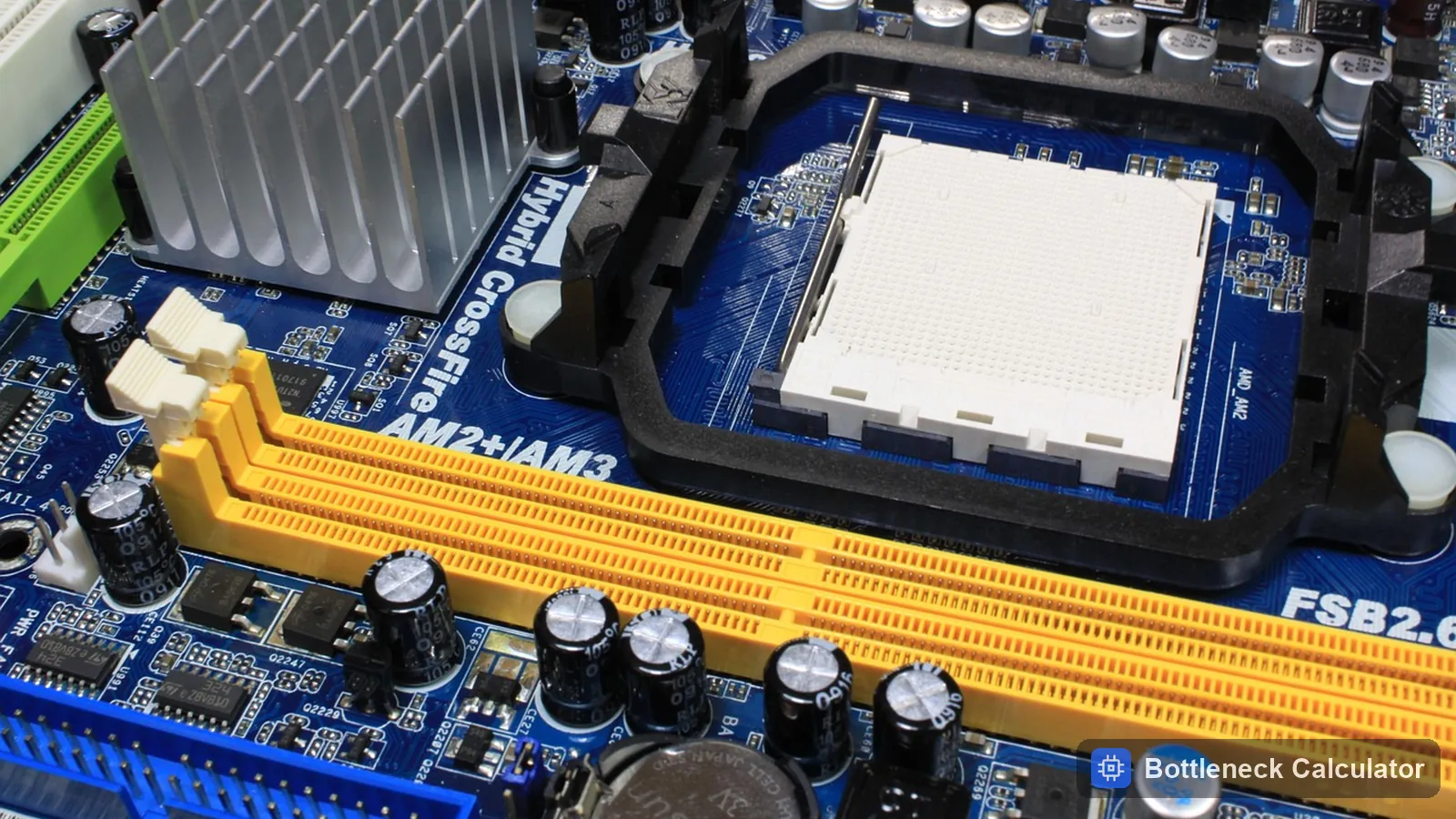
Do you need a BIOS update for a new graphics card?
Rarely, and mostly on boards five or more years old. The symptom is distinctive: the system powers on, fans spin, and there is no display output at all. If that happens, the BIOS is the first thing to check rather than assuming the card is faulty.
Older boards may also need Above 4G Decoding and Resizable BAR enabled to get full performance from a modern card. Those are BIOS settings rather than updates, and they are easy to miss.
Is a pairing compatible or actually balanced?
Compatible means it runs. Balanced means neither part is wasted. A flagship card with an old processor at 1080p is compatible and badly balanced, and that is the situation people most often buy into by accident.
The test takes thirty seconds on an existing system. Drop every graphics setting from high to low and watch the frame counter. A large jump means the card was the limit. Almost no change means the processor is.
For a system you have not built yet, our FPS calculator estimates the result and the bottleneck checker reports which part constrains it. If the processor turns out to be the weak link, fixing a CPU bottleneck without replacing it is the cheapest first move and our gaming CPU guide covers the upgrade.
What do people get wrong about this?
Searching for a compatibility chart that does not exist, worrying about brand mixing, and treating a performance imbalance as a fault.
- **Looking for a CPU and GPU compatibility list.** There is not one, because there is nothing to list.
- **Avoiding Intel with AMD graphics or the reverse.** Completely normal combinations.
- **Thinking PCIe generation prevents a card working.** It does not, in either direction.
- **Ignoring the x8 lane trap on a PCIe 3.0 board.** This one genuinely costs 10% to 20%.
- **Forgetting to measure the case.** The most common real incompatibility there is.
- **Confusing a bottleneck with a fault.** Every system is limited by something.
Where to go next
- CPU bottleneck versus GPU bottleneck for the balance question.
- What counts as a good bottleneck percentage for reading the result.
- PCIe 5.0 versus 4.0 for when the lane generation matters.
- Best PC cases for the clearance measurements.
- Our PC builder and PSU calculator to verify everything at once.
PassMark’s G3D chart and single thread chart let you compare any two parts for free before buying, and a current gaming processor is the usual fix when the pairing turns out to be unbalanced.
CPU and GPU compatibility questions
Are CPUs and GPUs compatible with each other?
Yes, universally on consumer desktop hardware. The processor and graphics card never connect directly. The card plugs into a PCIe slot and the motherboard handles everything between them. Brand makes no difference either, so an Intel processor with an AMD graphics card is a completely normal combination.
Do I need to match my CPU and GPU brand?
No. Intel processors with AMD graphics cards and AMD processors with NVIDIA cards are both entirely standard. There is no performance penalty, no driver conflict and no compatibility concern. The only time brand matters is for vendor specific features like Resizable BAR implementations, and those work across brands anyway.
What actually has to match between a CPU and GPU?
Nothing between them directly. Four things have to match in the system as a whole: an available PCIe x16 slot, power supply capacity and the right connectors, physical clearance in the case, and occasionally a motherboard BIOS version on older boards. The processor model is not on that list.
Will a new graphics card work with an old CPU?
It will work. Whether it is worth doing depends on resolution. At 4K the card does nearly all the work, so an older processor still delivers most of the card’s performance. At 1080p the processor decides your frame rate and an old one will cap a new card badly.
Does PCIe generation affect GPU compatibility?
Not compatibility, only performance in specific cases. PCIe is backward and forward compatible, so a PCIe 5.0 card works in a PCIe 3.0 slot. A x16 card loses 1% to 3% there, which is negligible. A x8 card loses 10% to 20%, which is not, and that combination is common on budget cards.
How do I check if a GPU is compatible with my PC?
Five checks. Confirm a free PCIe x16 slot, check power supply wattage and connectors, measure card length against your case, check whether an older board needs a BIOS update, and separately assess whether the pairing is balanced for your resolution. Only the first four are compatibility.
Can my power supply limit which GPU I can use?
Yes, and this is a genuine compatibility constraint rather than a performance one. The failure mode is shutdowns under load rather than slow frame rates. Check both wattage and the specific connectors the card needs, since modern high end cards use a 12V-2×6 connector older units do not provide natively.
Do I need a BIOS update for a new graphics card?
Rarely, and mostly on boards five or more years old. The symptom is distinctive: the system powers on and fans spin but there is no display output at all. Older boards may also need Above 4G Decoding and Resizable BAR enabled in BIOS to get full performance, which are settings rather than updates.
What is the difference between compatible and balanced?
Compatible means it runs. Balanced means neither part is wasted. A flagship card with an old processor at 1080p is perfectly compatible and badly balanced, which is the situation people most often buy into by accident. Compatibility is a yes or no question. Balance is a question of degree.
How do I know if my CPU will bottleneck my new GPU?
On an existing system, drop every graphics setting from high to low and watch the frame counter. A large jump means the card was the limit. Almost no change means the processor is. For a system you have not built, run the exact pairing through a bottleneck calculator rather than guessing.
The practical answer
There is no CPU and GPU compatibility chart because there is nothing to chart. Any modern processor runs any modern card.
What you actually need to check is the slot, the power supply, the case clearance and occasionally the BIOS. Four things, all of them about the system rather than the pairing.
Then ask the question you were really asking: is this combination balanced for the resolution I play at. That is where the money is won or lost, and it has nothing to do with compatibility at all.
My prediction. This question will keep being asked for as long as people buy parts individually, because the honest answer sounds too easy to trust.
Which of the four actually applies to your build?
Images: geralt, Xan_Photography and Gray_Rhee via Pixabay.
Related reading

Best Intel CPU for Gaming in 2026 (An Honest Case)
Let me start where most Intel buying guides will not. AMD currently holds the gaming performance crown, and has since the X3D parts arrived. Any guide that pretends…
Read more about Best Intel CPU for Gaming in 2026 (An Honest Case)
Best CPU Coolers 2026: Air vs Liquid, Honestly
Cooler marketing is built around a number that does not mean much. A 360mm radiator sounds twice as capable as a 180mm one, and a tower cooler with…
Read more about Best CPU Coolers 2026: Air vs Liquid, Honestly
Thermal Paste for CPU: Mounting Matters More Than Brand
CPU thermal paste is the cheapest component in your machine and the one most likely to be applied wrongly, re-applied unnecessarily, or blamed for problems it did not…
Read more about Thermal Paste for CPU: Mounting Matters More Than Brand